Database management
 Detanami
A web-based client for connecting to, exploring, and managing your databases — SQL and NoSQL alike — without switching tools per engine. Detanami is a NoSQL client at heart, extended to cover the SQL engines teams already run in production: MySQL, MariaDB, Apache Doris, PostgreSQL, TimescaleDB, Amazon Redshift, Microsoft SQL Server, Azure SQL, Oracle, SQLite, DuckDB, ClickHouse, IBM DB2, Firebird, Snowflake, Google BigQuery, Amazon Athena, Google Cloud Spanner, Trino, Presto, Apache Iceberg, Cassandra (CQL), Neo4j (Cypher), InfluxDB, Couchbase (N1QL), and Elasticsearch, OpenSearch and Solr (SQL) share one SQL Workbench, while Redis, MongoDB, and CouchDB each get their own dedicated console.
The Home page lists every connection you have access to, grouped into two kinds:
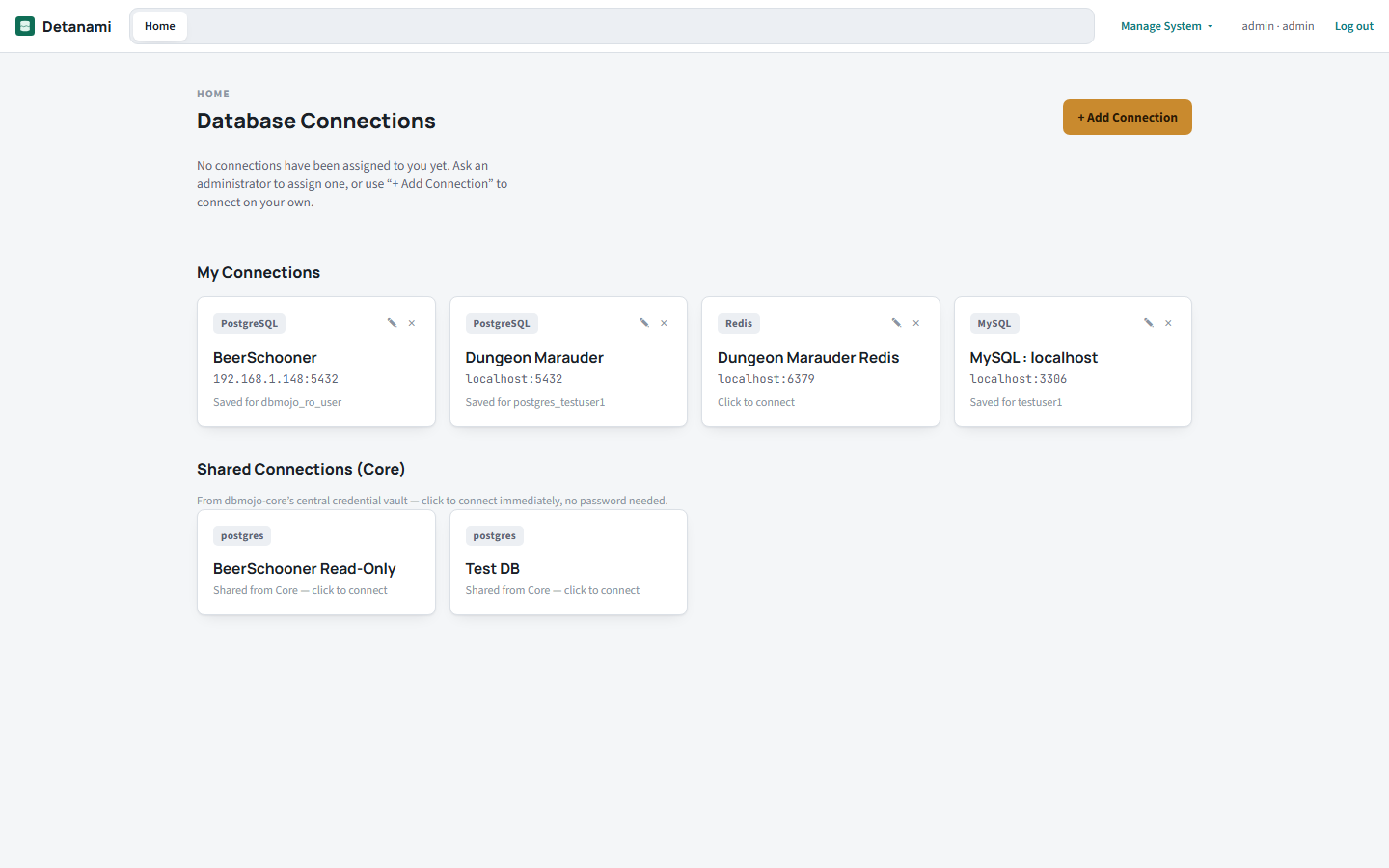
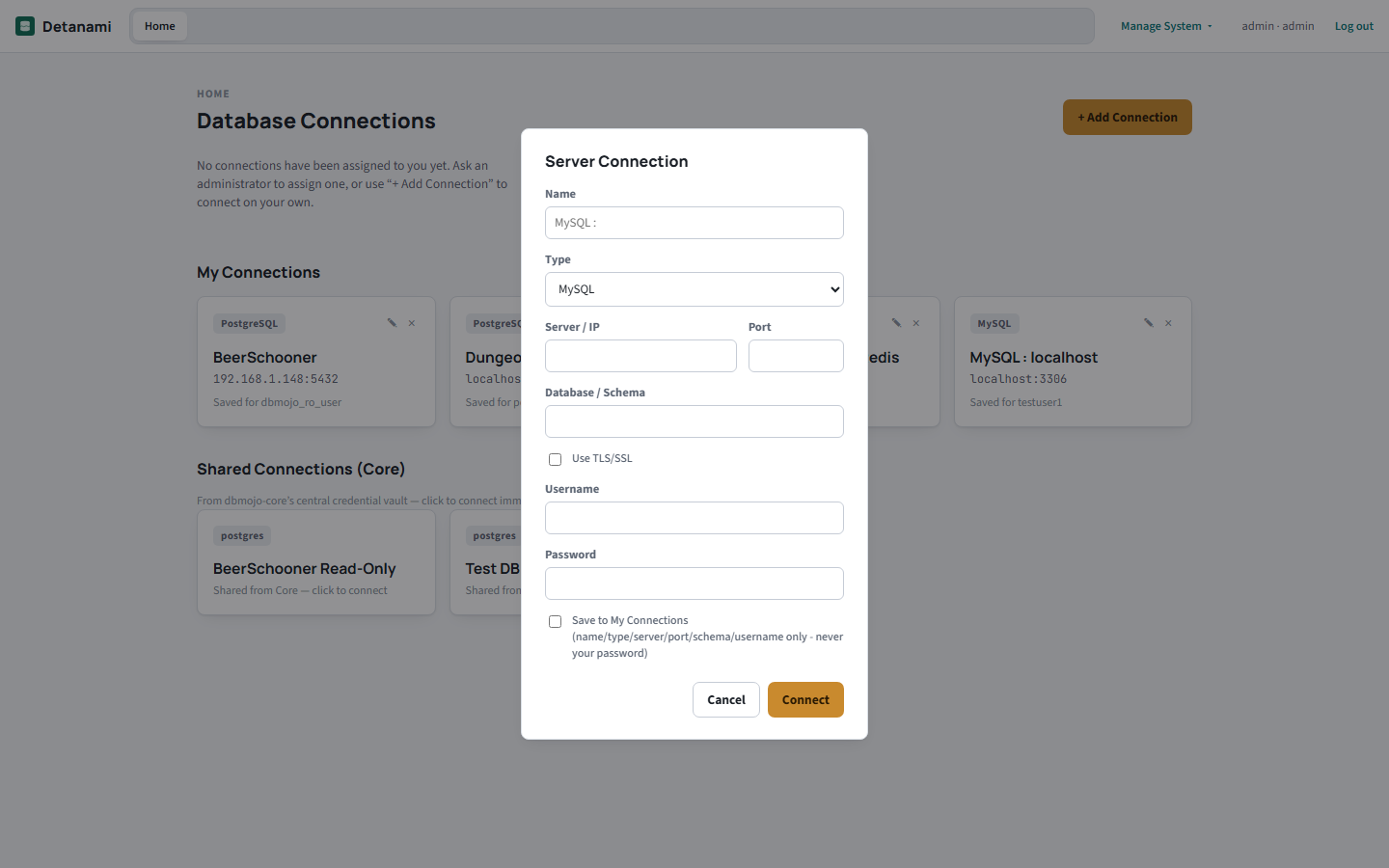
To add your own connection, click + Add Connection, pick a Type, and fill in the server details. Checking Save to My Connections remembers everything except the password for next time.
Once connected to a SQL-family database, you land in the Workbench: a schema tree on the left, a SQL editor, and a results grid below. Type a query and click Execute (or use Explain to see the query plan without running it).
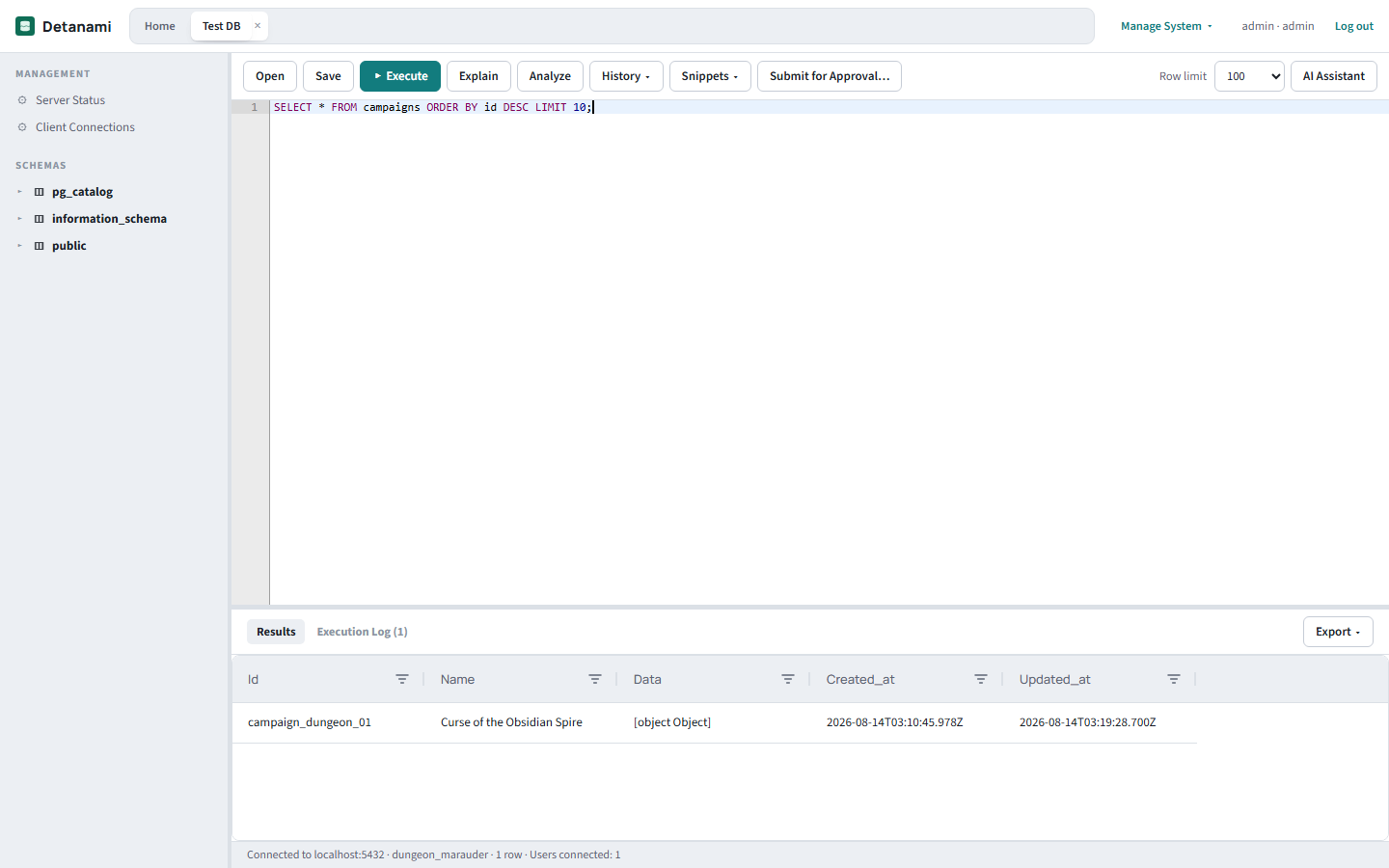
Results support inline editing directly in the grid for simple single-table queries, and can be exported via the Export menu above the grid. When a statement fails, Detanami shows an error panel in the results area with the driver's own structured detail — message, error code, and the detail and hint where the engine provides them (for example PostgreSQL's SQLSTATE and hint, or an Oracle ORA- code) — in the Workbench and in the Redis, MongoDB, and CouchDB consoles alike.
MySQL scripts can use the mysql command-line client's DELIMITER directive — the server itself rejects it, so Detanami splits such a script client-style and runs it statement by statement, which is what makes stored-procedure and trigger scripts work. A script with no DELIMITER line runs exactly as before.
The schema tree on the left isn't just tables. Each schema has collapsible groups for indexes, procedures, functions, triggers, and events (whichever kinds the engine has), listed by per-dialect catalog queries — if one kind can't be listed, it's skipped rather than breaking the tree. Double-click an object, or right-click a view and choose Show view definition, to load its definition into the editor; MySQL routine, trigger, and event definitions come wrapped in DELIMITER so they can be re-run as-is. The refresh icon beside Schemas reloads the tree after you've changed something.
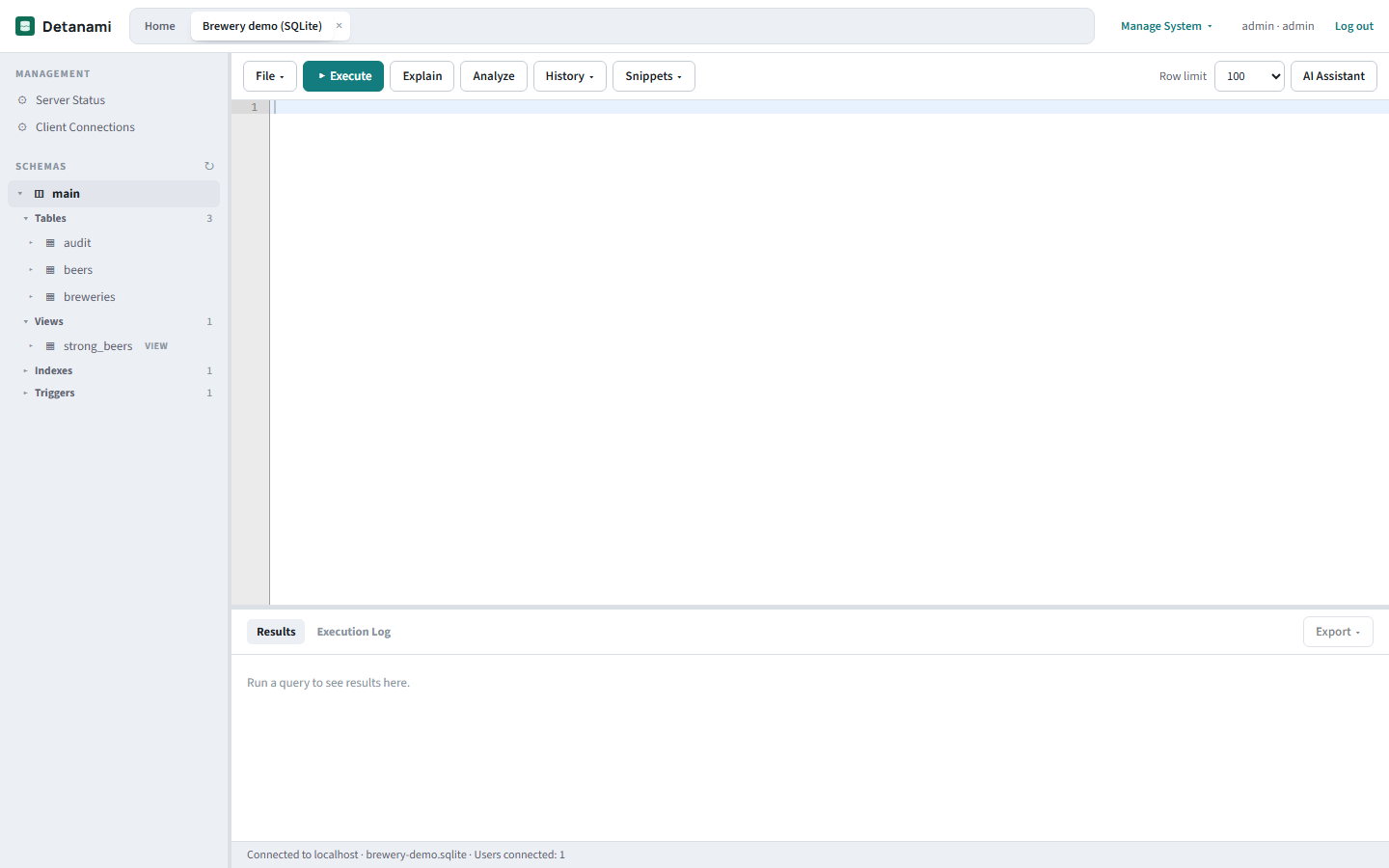
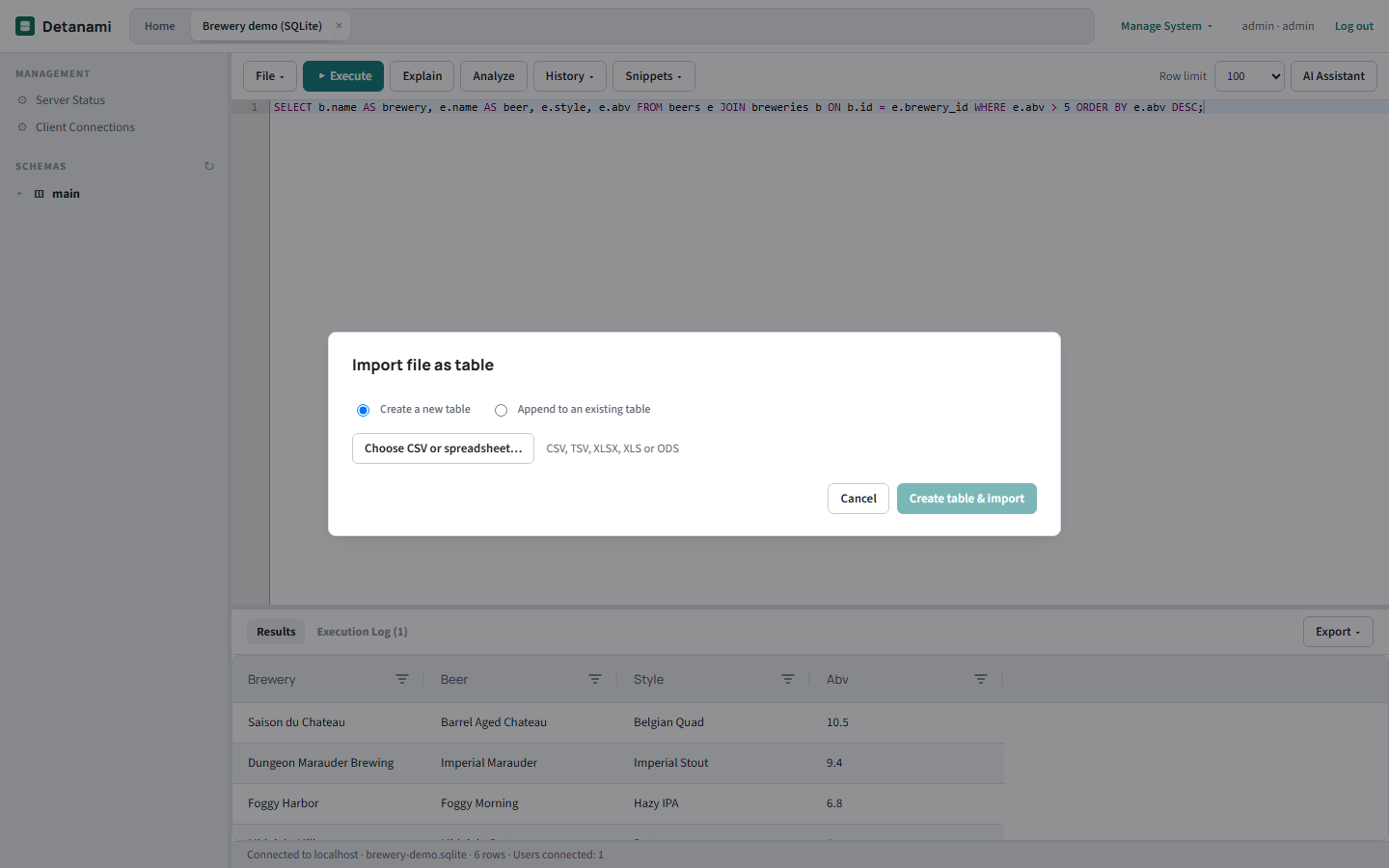
The workbench's file-related actions live in one File menu: Open and Save for local .sql files, Save to Git / Load from Git for scripts kept in your repository, and Import for loading data files into tables.
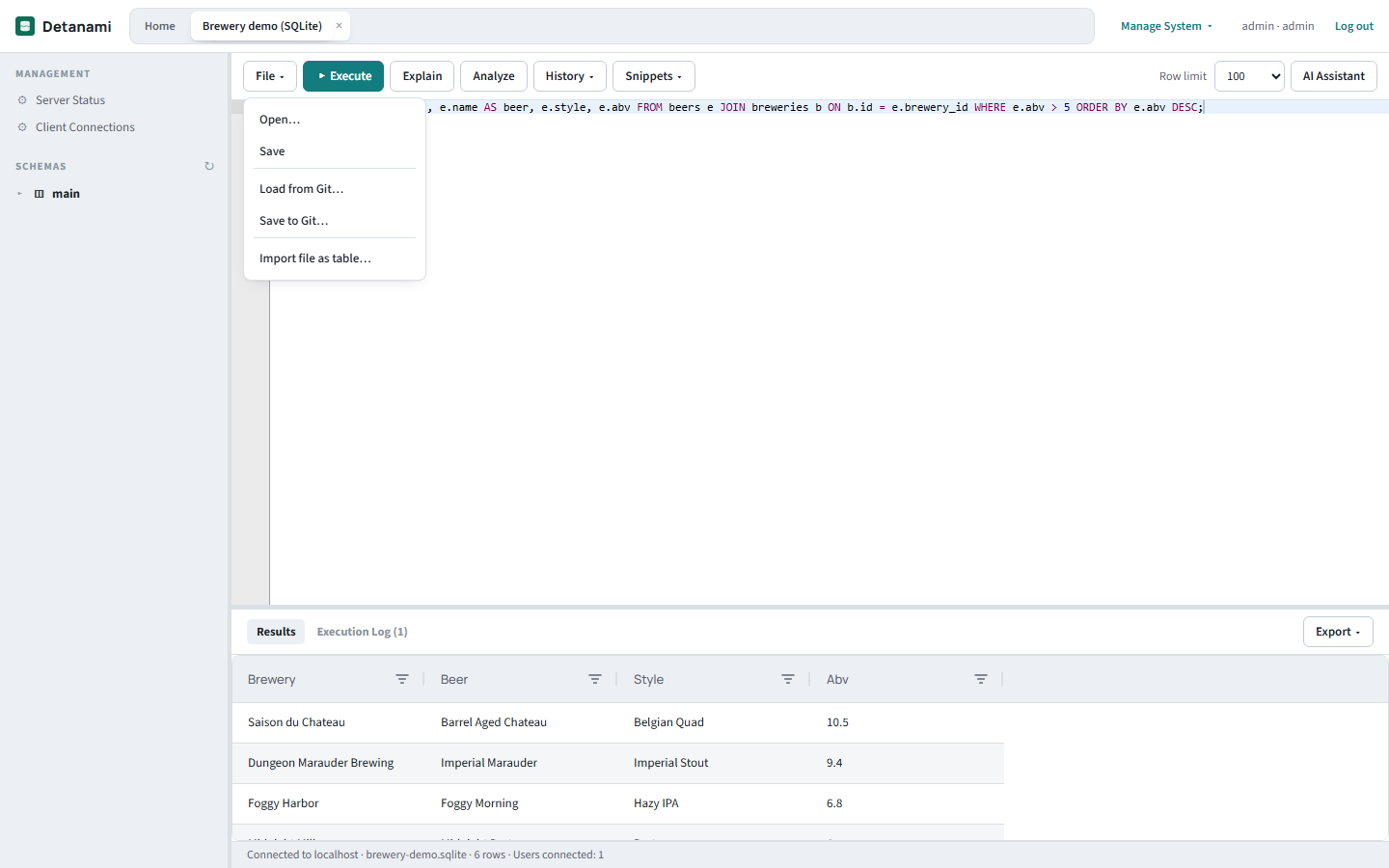
Pick a repository and branch (from the Git connection configured under Core's Version Control) and commit the editor's text directly, or open a pull request instead; or browse the repository and load a script into the editor. Saving is limited to the admin and developer roles, and every call goes through Core's Version Control connection — Detanami never holds a Git credential of its own.
Import reads a CSV, TSV, or spreadsheet (.xlsx, .xls, .ods) in your browser, guesses a type for every column (text, integer, big integer, decimal, floating point, boolean, date, or date + time), and lets you review and override each one before anything touches the database. Choose to create a new table, or append to an existing table by picking its schema and table: file columns are matched to the table's by name and each type defaults to the table's own. The server re-validates every value, builds per-dialect CREATE TABLE and batched inserts, and audit-logs the result. A progress bar shows the import running.
When the open connection is a Shared Data Connection and Blueprint is installed and enabled for you, a Model in Blueprint button appears in the workbench toolbar. It opens Blueprint with that connection already selected in its import dialog, so you can reverse-engineer the schema onto an ER canvas. The reverse path matters too: a change Blueprint files as a deployment request is approved in Core and then run here — Blueprint links to Detanami's execute-by-id flow for it, and Detanami re-checks your access to the connection before running anything.
ClickHouse is Detanami's tenth supported database. It connects over ClickHouse's HTTP(S) interface — default ports 8123 (HTTP) or 8443 (HTTPS, with the usual Use TLS/SSL and trust-self-signed options) — and the username defaults to default.
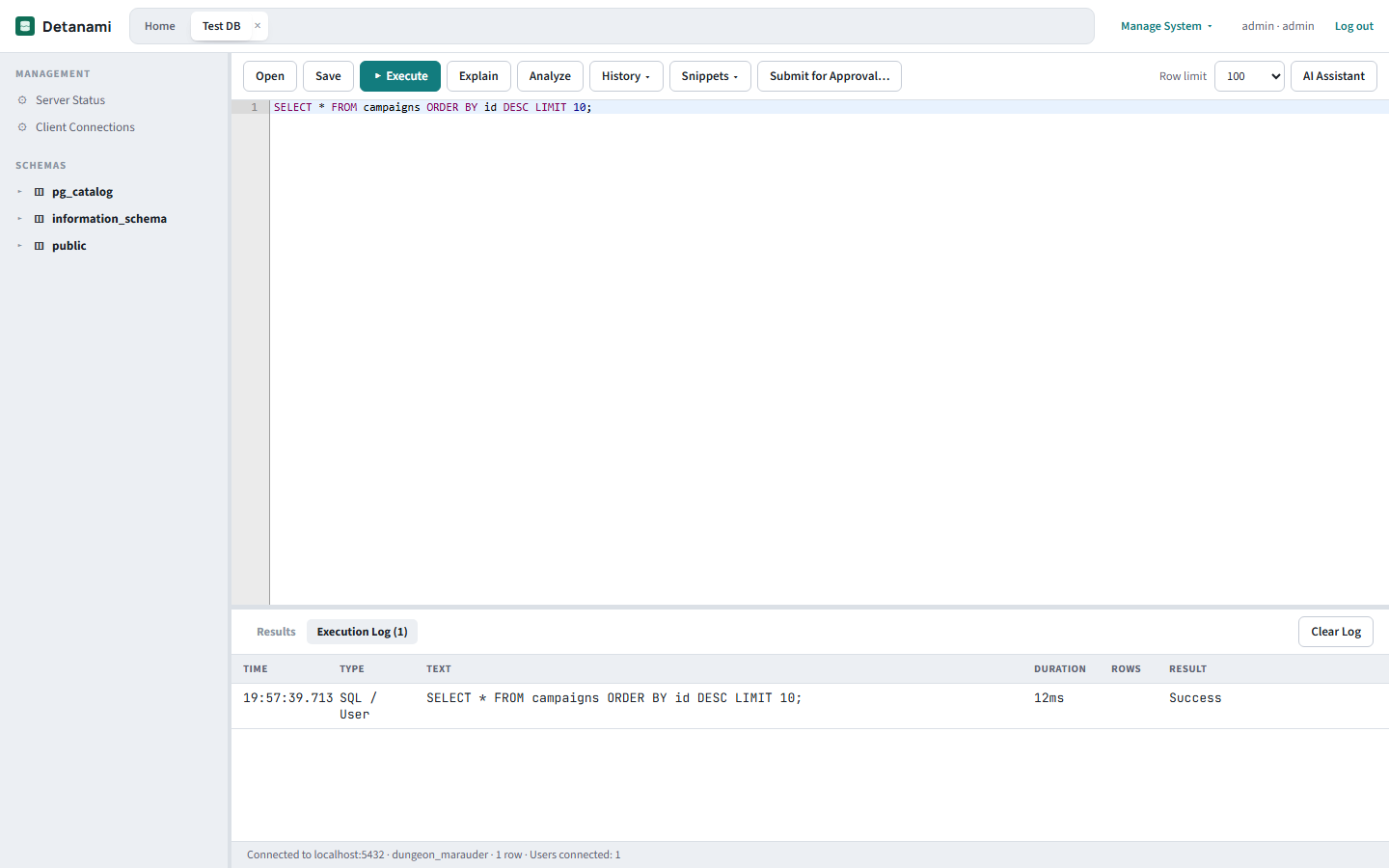
Next to Results is an Execution Log tab — every statement you run (Execute, Explain, or an inline cell edit) is recorded with its start time, duration, row count, and either "Success" or the error text, with failures highlighted. It mirrors the execution log in tools like DBeaver, and is shared by the SQL Workbench and all three NoSQL consoles.
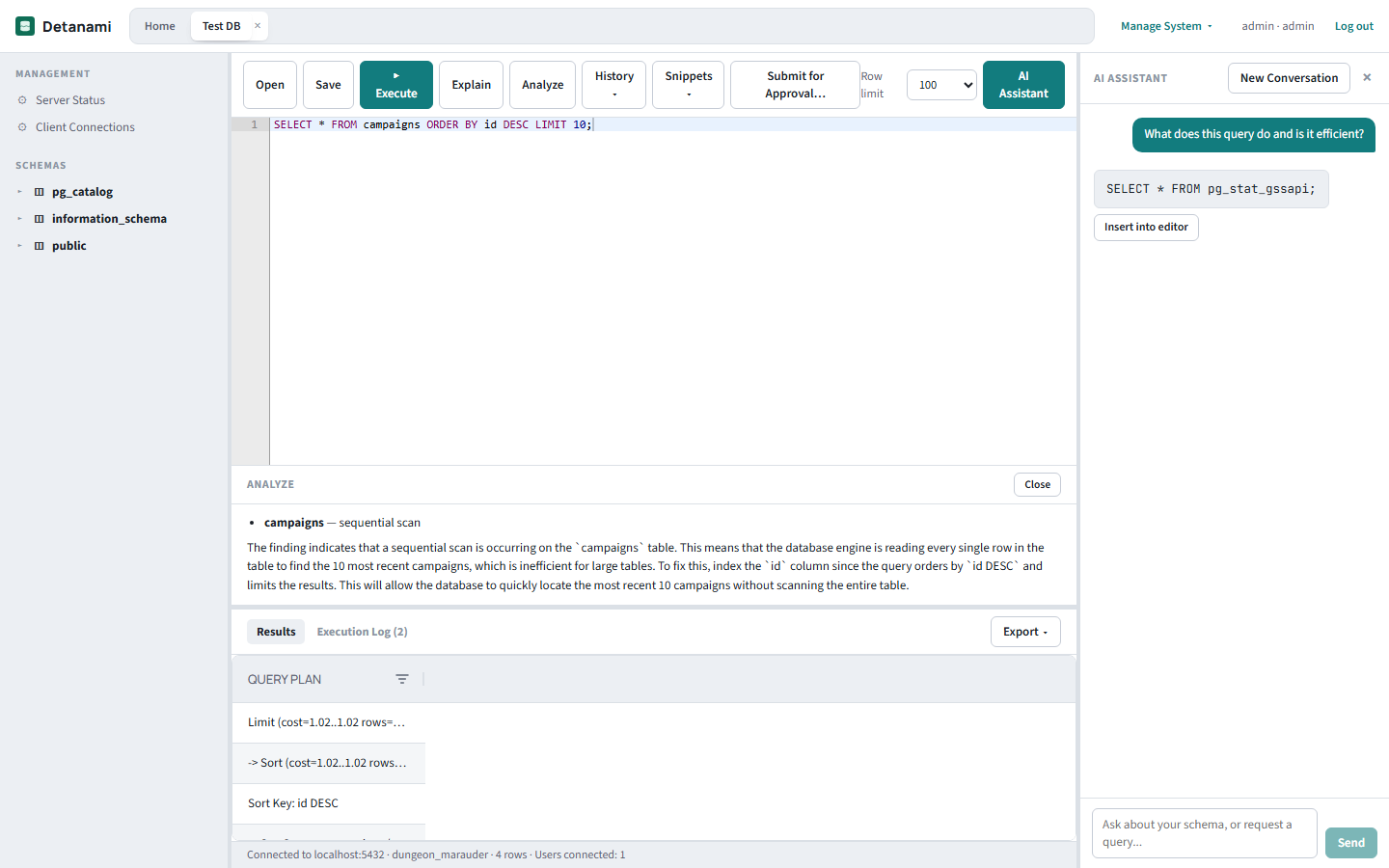
Click AI Assistant to open a resizable chat dock on the right — modeled on DBeaver's AI Chat panel. Ask a schema-aware question in plain language; the assistant runs on DBMojo's self-hosted AI DBA Agent (Ollama in development, vLLM in production) and streams its answer back token by token.
The same chat panel — with a dialect-aware system prompt matched to that console's own command syntax — is also available in the Redis, MongoDB, and CouchDB consoles (see below).
Click Analyze to go one step further than a plain EXPLAIN: Detanami runs the query plan, scans it for real problems (a sequential scan on a large table, a missing index for a sort or join), and has the AI DBA Agent write a plain-language narrative explaining what's actually wrong and how to fix it — not just a rendered plan tree.
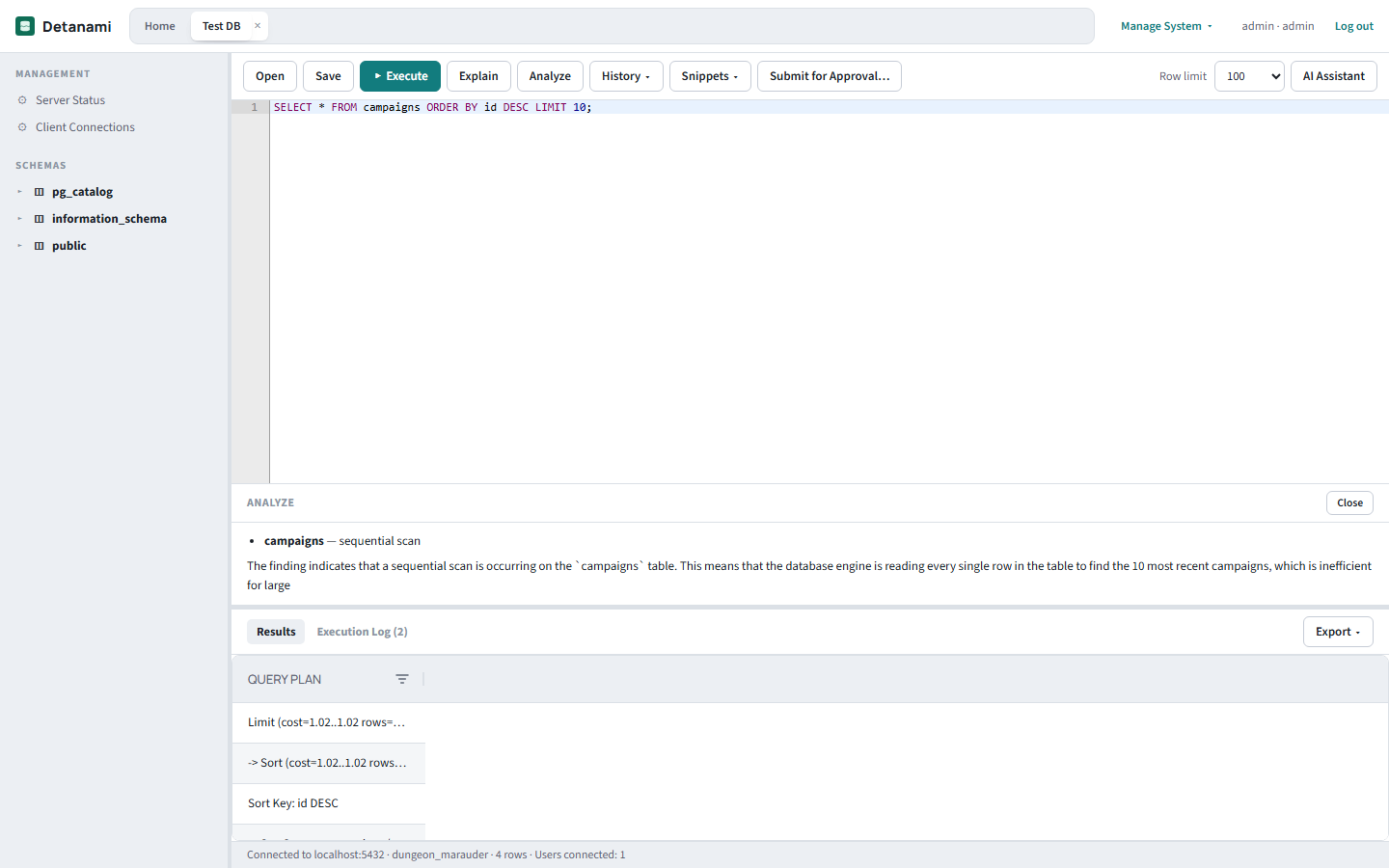
Analyze & Tune understands each engine's own EXPLAIN mechanics — including cases with no shared vocabulary at all: SQL Server's SET SHOWPLAN_XML toggle has to be the only statement in its own batch, and Oracle's EXPLAIN PLAN FOR writes into a shared PLAN_TABLE that has to be read back and cleaned up afterward. It currently covers PostgreSQL, MySQL, MariaDB, Amazon Redshift, SQLite, Microsoft SQL Server, Azure SQL, Oracle, and ClickHouse (not yet Doris, DuckDB, DB2, Firebird, Couchbase, Elasticsearch, OpenSearch, Solr, Cassandra, Neo4j, InfluxDB, Trino/Presto/Iceberg, or the cloud warehouses).
The Snippets menu lets you save a query for reuse later and recall a saved one into the editor. History keeps a running list of everything you've executed on this connection, independent of the Execution Log's richer per-statement detail (duration, row count, success/failure).
Submit for Approval… routes a risky statement — typically DDL, or any change a team wants a second set of eyes on — into DBMojo Core's Automated Deployment ledger instead of running it immediately. An admin reviews and approves (or rejects) the request from Core's Deployments tab; Core only ever tracks and gates the change, it never executes it against the database itself — Detanami still does that, once approved.
The dialog lets you pick a target connection other than the one you're working on — for example, a production connection you can't query directly — and add a comment for the approver, who sees your exact SQL alongside it. Requester and approver can keep talking in a comment thread on the request. When a request is approved, Core's Deployments page shows an Execute in Detanami link that opens the statement in Detanami, which independently re-checks that you really do have access to the target connection before it runs. A completed request can be archived out of your view.
Every statement you actually do run — through Execute, an inline edit, or an approved deployment — is also reported to Core's centralized audit log, tagged with which tool ran it and how long it took.
These three aren't SQL, so instead of the Workbench's query editor and schema tree, each gets its own console with a one-line command input and a browser suited to how that store organizes data:
| Store | Command line looks like | "Schema" shows |
|---|---|---|
| Redis | HGETALL user:123 | A SCAN of the keyspace grouped by :-prefix |
| MongoDB | users find {"role":"admin"} | Collections, with an estimated document count |
| CouchDB | get some-doc-id | The database's own documents (id + revision) |
All three share the same results table component, the same Execution Log, and the same AI Assistant chat pattern as the SQL Workbench — each with a system prompt tuned to that store's own syntax rather than reusing the SQL-oriented one.
SELECT * FROM campaigns ORDER BY id DESC LIMIT 10;, and click Execute to confirm it returns what you expect.CREATE INDEX), write it in the editor and use Submit for Approval… rather than running it directly, so a teammate can review it first.Three roles exist for Detanami, assigned per user from Core's User Management: admin, developer, and analyst.
All engines support TLS/SSL except SQLite and DuckDB (local files with no network connection to secure) and Firebird. The cloud warehouses (Snowflake, BigQuery, Athena, Spanner) are always TLS, so they have no toggle, and take extras such as a Snowflake warehouse after a ? in Database / Schema. Azure SQL reuses the SQL Server driver, TimescaleDB the PostgreSQL one, Doris the MySQL one, and Valkey the Redis client. Iceberg is a table format, so it is queried through a Trino-compatible coordinator. DuckDB can read any file the server can unless you open it with ?external=false. MariaDB reuses the MySQL driver. Couchbase runs N1QL and Elasticsearch runs its SQL endpoint, in the SQL Workbench. SAP ASE / Sybase can be stored as a connection type but has no driver yet. Redshift reuses PostgreSQL's wire protocol; Oracle connects via a pure-JS driver with no Instant Client to install.
 DBMojo Docs