DBMojo Docs

Visualization

DataMosaic

In development

A web-based data visualization and dashboarding platform: connect to sample datasets, uploaded spreadsheets, or live REST APIs, build drag-and-drop dashboards out of bar/line/pie/scatter/heatmap/map/table/KPI widgets, and collaborate on them in real time — comments, live presence, and instant sync of every edit to everyone else looking at the same dashboard.

Data sources

Every dashboard widget ultimately plots one of five source types, all under Data Sources:
  • SQL Database (query graph) — a Shared Data Connection from Core to MySQL/MariaDB/Doris, PostgreSQL/TimescaleDB, SQL Server/Azure SQL, IBM DB2, Firebird, Snowflake, BigQuery, Cloud Spanner, Amazon Athena, Trino/Presto/Iceberg, Couchbase, or Elasticsearch. Widgets on this source are built on a visual query graph and run in your database.
  • Sample datasets — three bundled, ready-to-explore datasets (sales by region/product, 120 days of website traffic, world cities) so the app is useful with zero setup.
  • Spreadsheet upload — .csv, .xlsx, .xls, and .ods files, with numeric columns auto-detected.
  • REST API — a live URL, optionally with a dot-path (e.g. data.items) to dig into the JSON response for the row array.
  • DBOps Telemetry — fleet-health data pushed by Flow's AI DBA nodes into DBMojo Core, resolved through the same per-user authorization as any Shared Data Connection. See The DBOps Dashboard.
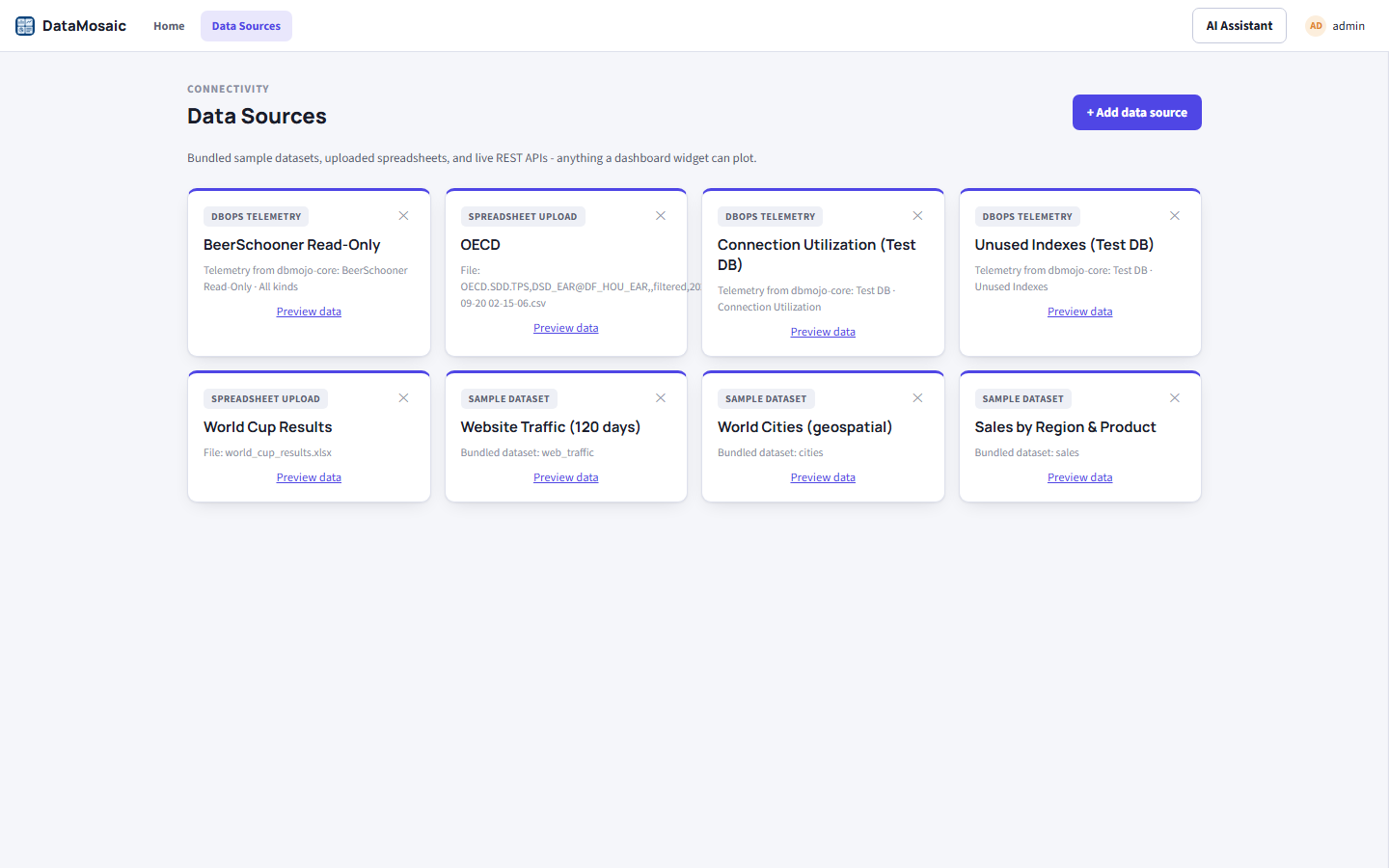
Data Sources page listing DBOps Telemetry, Spreadsheet Upload, and Sample Dataset entries, each with a Preview data link
Every source shows its kind as a badge — DBOps Telemetry, Spreadsheet Upload, or Sample Dataset — and a Preview data link to check its shape before charting it.

Building a dashboard

From Home, click + New dashboard for a blank canvas, or open an existing one. Dashboards are a 12-column, drag-and-resize grid — click + Add widget to place one.
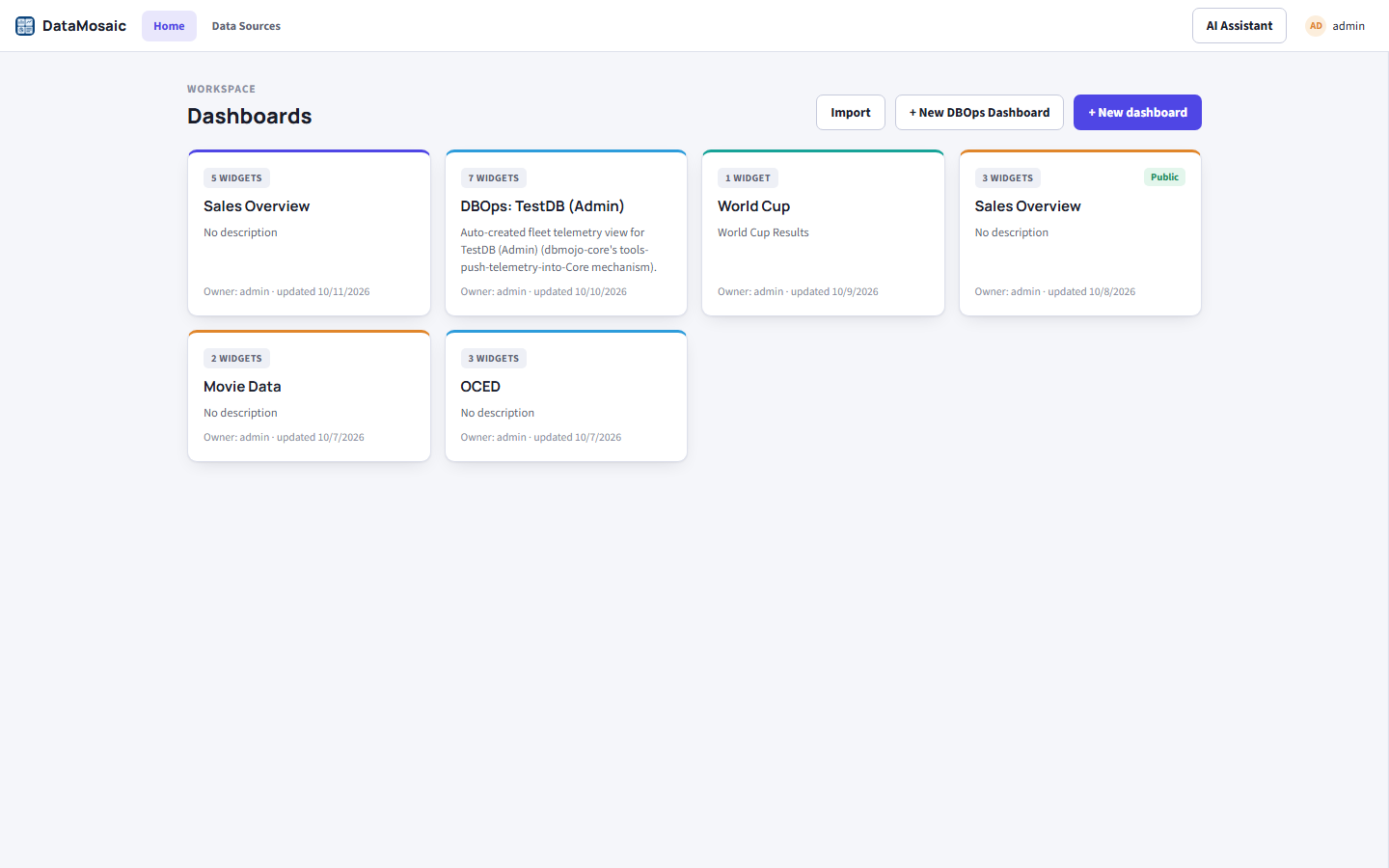
Dashboards home page listing several dashboards including BeerSchooner, OCED, DBOps: Test DB, World Cup, and Sales Overview
Each card shows its widget count, owner, and last-updated date; a green Public badge marks a dashboard with an active share link, and a Shared with you badge marks one another user has given you access to.
  • Import (top of Home) creates a new dashboard from a dashboard file exported earlier — see Export, import & reporting. Data sources are re-linked by name and type.
  • Each card has Export and Delete actions, so you can back up or remove a dashboard without opening it. The dashboard toolbar has a Delete button too, and deleting a widget confirms success or failure with a toast.
  • Click a widget's title to rename it in place, straight from the dashboard.

Visual query graph

For a SQL Database source, the widget editor shows a node-and-edge Query graph instead of a column picker. Add Table, Join, Filter, Aggregate, Sort, and Limit nodes, then click a node's right-hand dot and another node's left-hand dot to wire them together (click a wire to remove it). Run preview shows the result in the editor before you save.
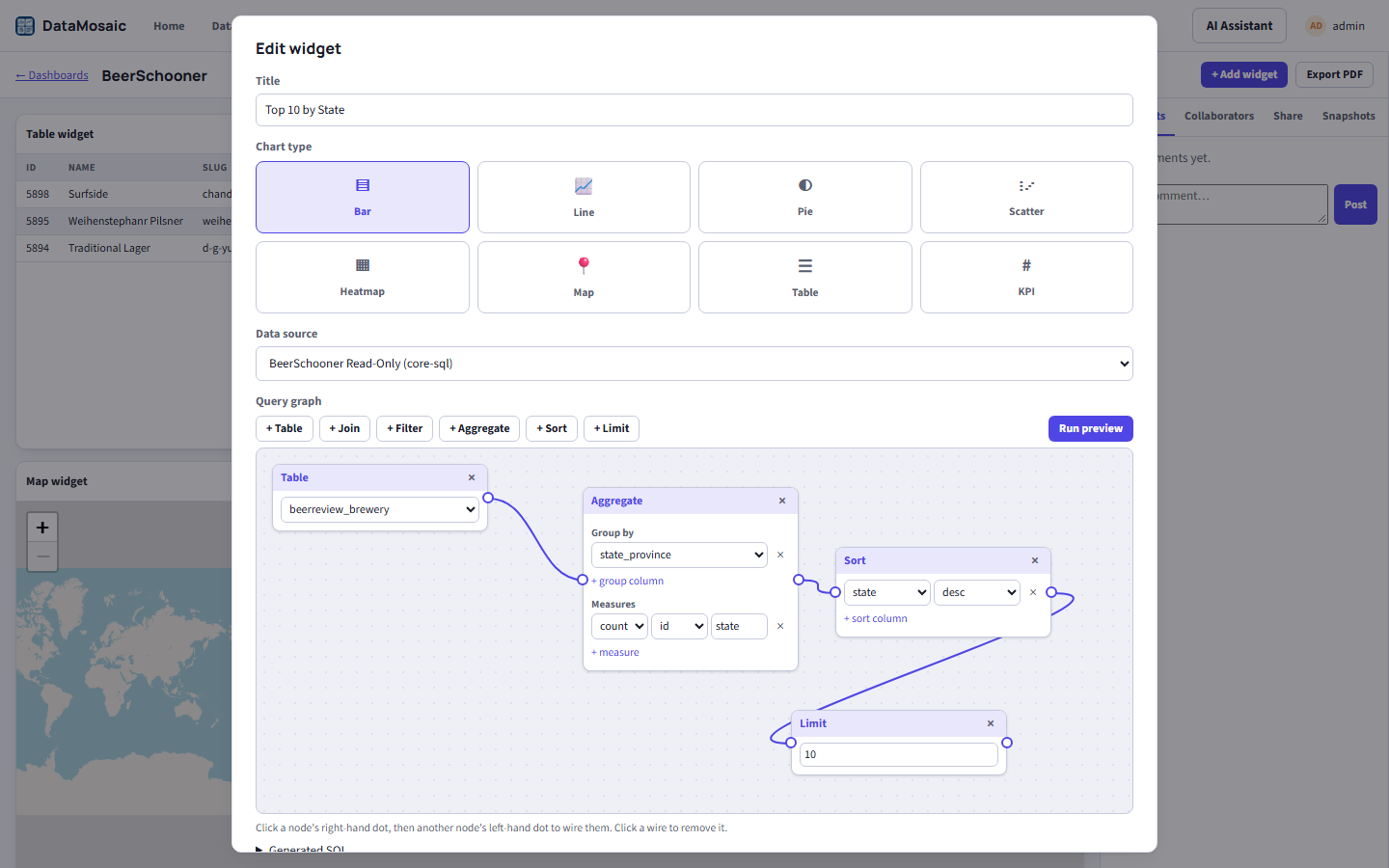
Widget editor showing a query graph: a Table node feeding Aggregate, Sort, and Limit nodes for a Top 10 by State bar chart
The graph behind a Top 10 by State widget: Table → Aggregate (group by state, count) → Sort → Limit 10.

The whole graph compiles to one read-only, parameterised WITH … SELECT that runs in the database — only the result rows come back to DataMosaic, which shapes them for the chart. Open Generated SQL under the graph to see exactly what will run. Filter conditions support the usual comparison operators plus not in (compiled to a bound NOT IN (…) list).

Dashboard cross-filters work here too: clicking a category on one widget adds a bound WHERE to the other SQL widgets' final select, so the filter applies before the 10,000-row result cap rather than trimming rows afterwards.
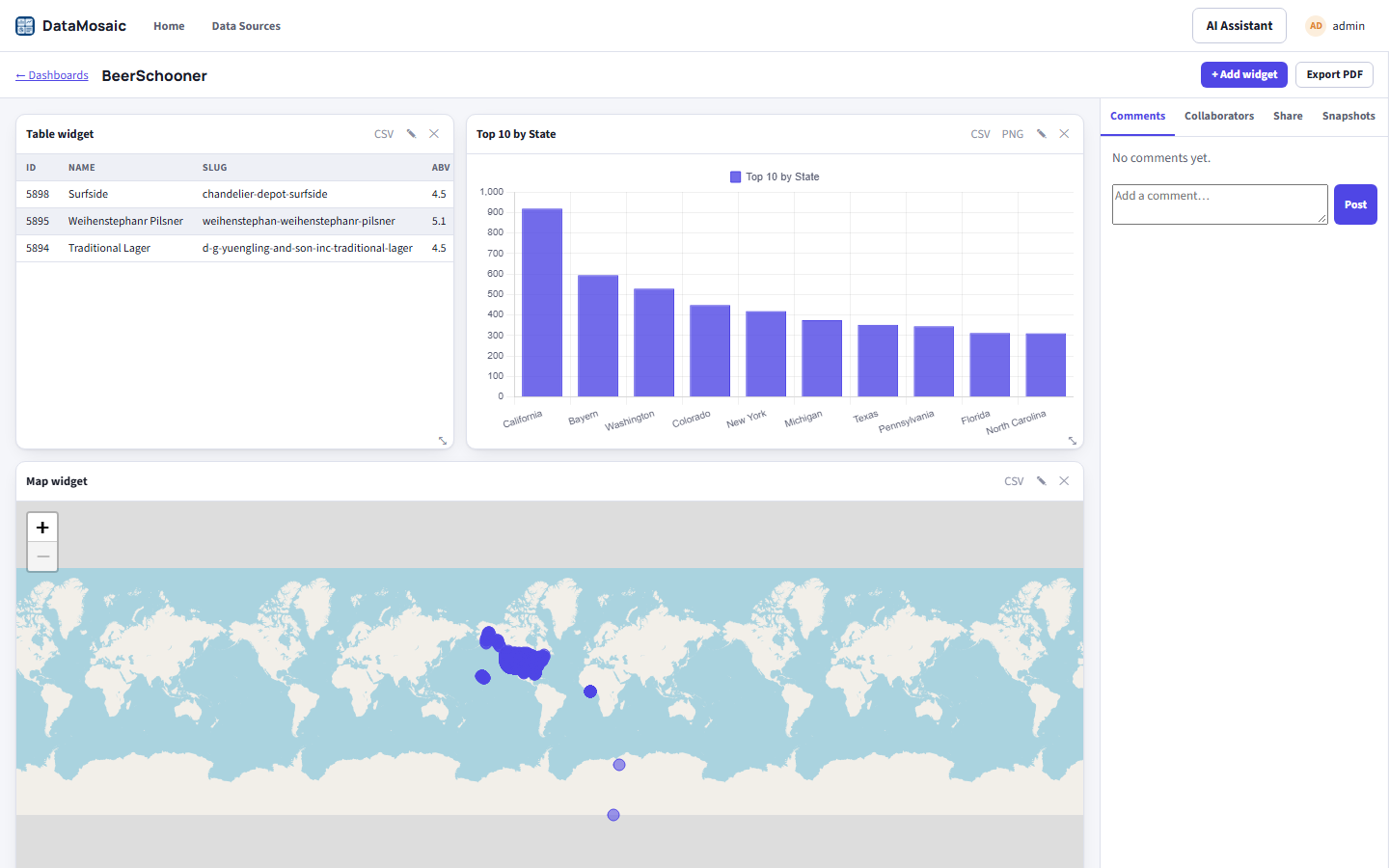
A dashboard with a SQL-backed table, a Top 10 by State bar chart, and a map widget
A finished dashboard where every widget is a query graph against the same shared connection.
Scope Query graphs are available for connections to those engines shared through Core (Elasticsearch graphs must be a single chain with no joins; Cassandra, Neo4j, InfluxDB, Solr, OpenSearch, and DuckDB aren’t offered), and aren't available to guests using an edit link (see Collaboration & sharing) — a guest can't add data sources or SQL graphs.

Widgets, chart types & colors

The Add widget dialog picks a chart type, a data source, and how to map its columns — category/value axes, an optional split-by series, and an aggregation (sum, avg, count, ...). Bar and line widgets can also show a linear-regression trend line or flag statistical outliers (more than two standard deviations from the mean).
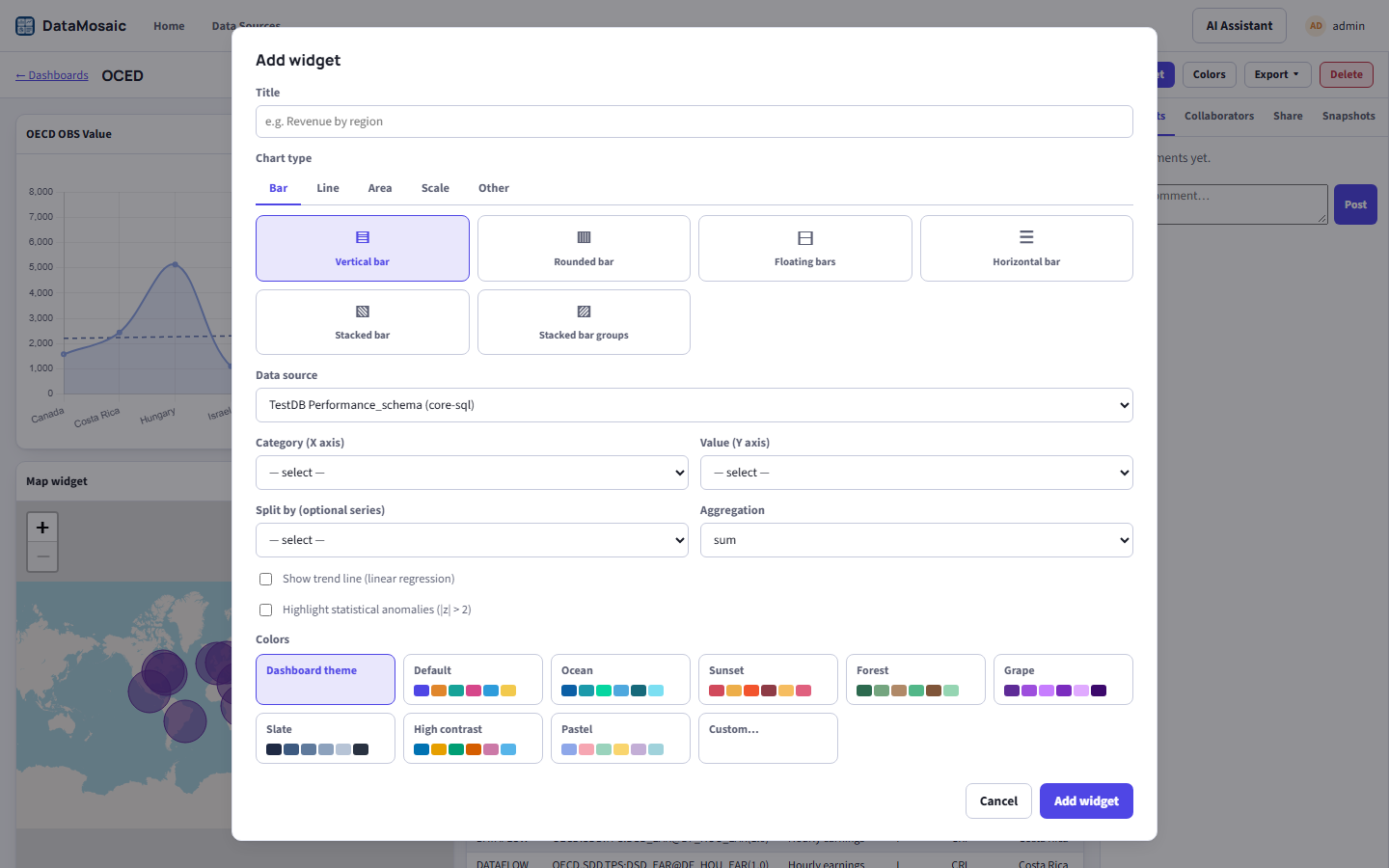
Add widget dialog with Bar, Line, Area, Scale and Other chart-type tabs, six bar variants, a data source dropdown, axis mapping, trend line and anomaly checkboxes, and a Colors palette picker
The chart-type tabs (Bar / Line / Area / Scale / Other) with the Bar variants showing, then data source, axis mapping, and a per-widget Colors choice at the bottom.

42 chart variants

Chart types are grouped into five tabs. Bar, Line, Area and Scale hold the Chart.js variants — for example vertical, horizontal, rounded, floating, stacked and stacked-group bars, plus time-scale charts that sort and space points by date. Other holds Map (Leaflet + OpenStreetMap), Heatmap, Table, KPI, and the remaining types. Each variant shows only the field pickers and options it needs (a second measure, a stack group, a bubble-size field, and so on), and the original eight type keys (bar, line, pie, scatter, heatmap, map, table, KPI) keep their meaning, so existing dashboards render unchanged.

Table widgets & the column picker

A Table widget has a Columns picker in the editor so you choose which columns appear. If the source or query behind a table changes and some saved columns no longer exist, the table shows only those that still do — or every column if none match — rather than rendering blank cells.

Color themes

The Colors button in the dashboard toolbar sets a theme for every chart on that dashboard: Default, Ocean, Sunset, Forest, Grape, Slate, High contrast, Pastel, or Custom… to pick your own colors. A widget can override the dashboard theme from its own editor. Themes also color trend lines and anomaly highlights, and they carry through to public share links and embeds. A dashboard with no theme renders exactly as before.
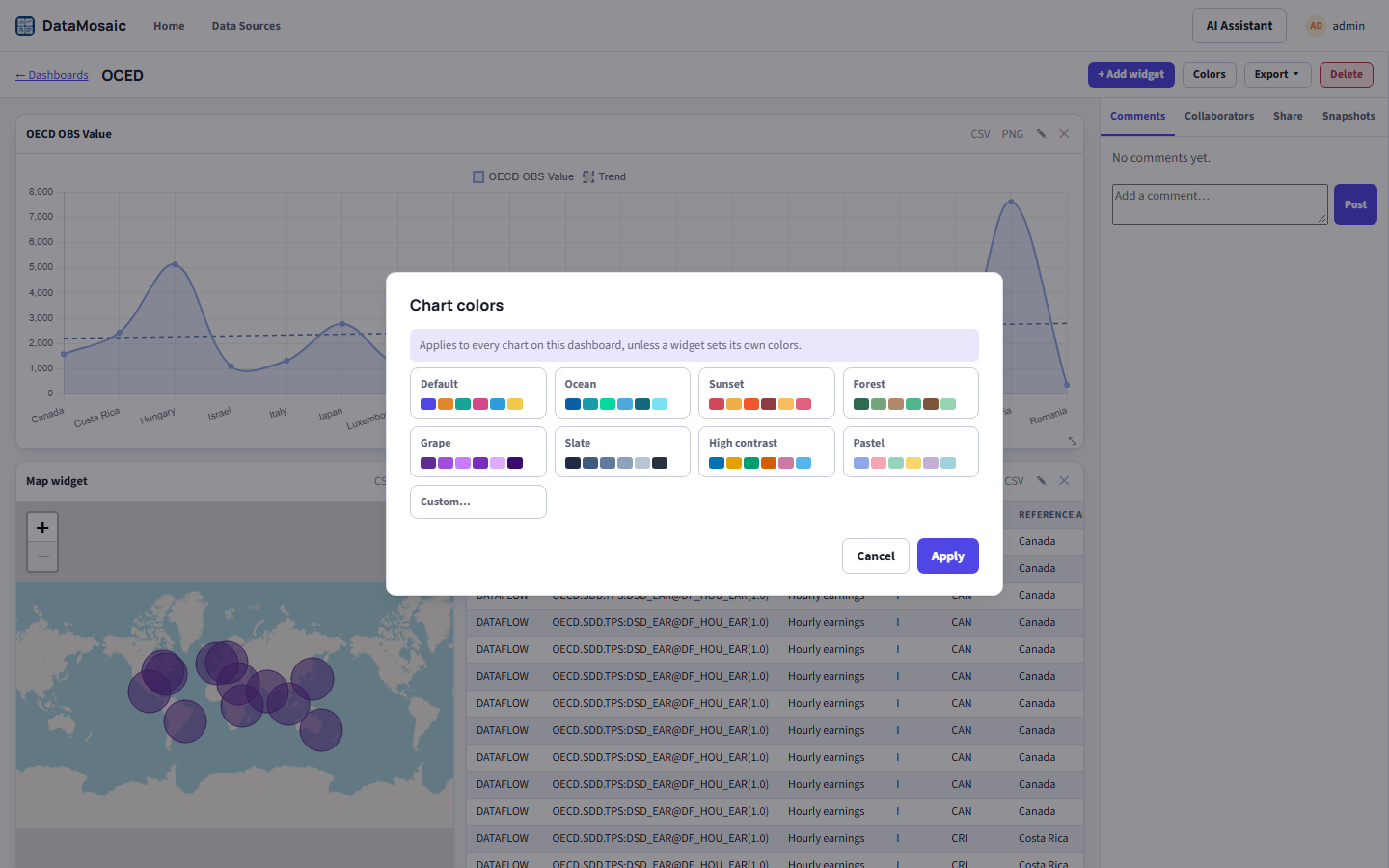
Chart colors dialog offering Default, Ocean, Sunset, Forest, Grape, Slate, High contrast, Pastel and Custom palettes
The dashboard-wide Chart colors dialog. It applies to every chart unless a widget sets its own colors.

A finished dashboard mixes several widgets freely — clicking a bar or pie slice cross-filters every other widget on the same dashboard by that category.
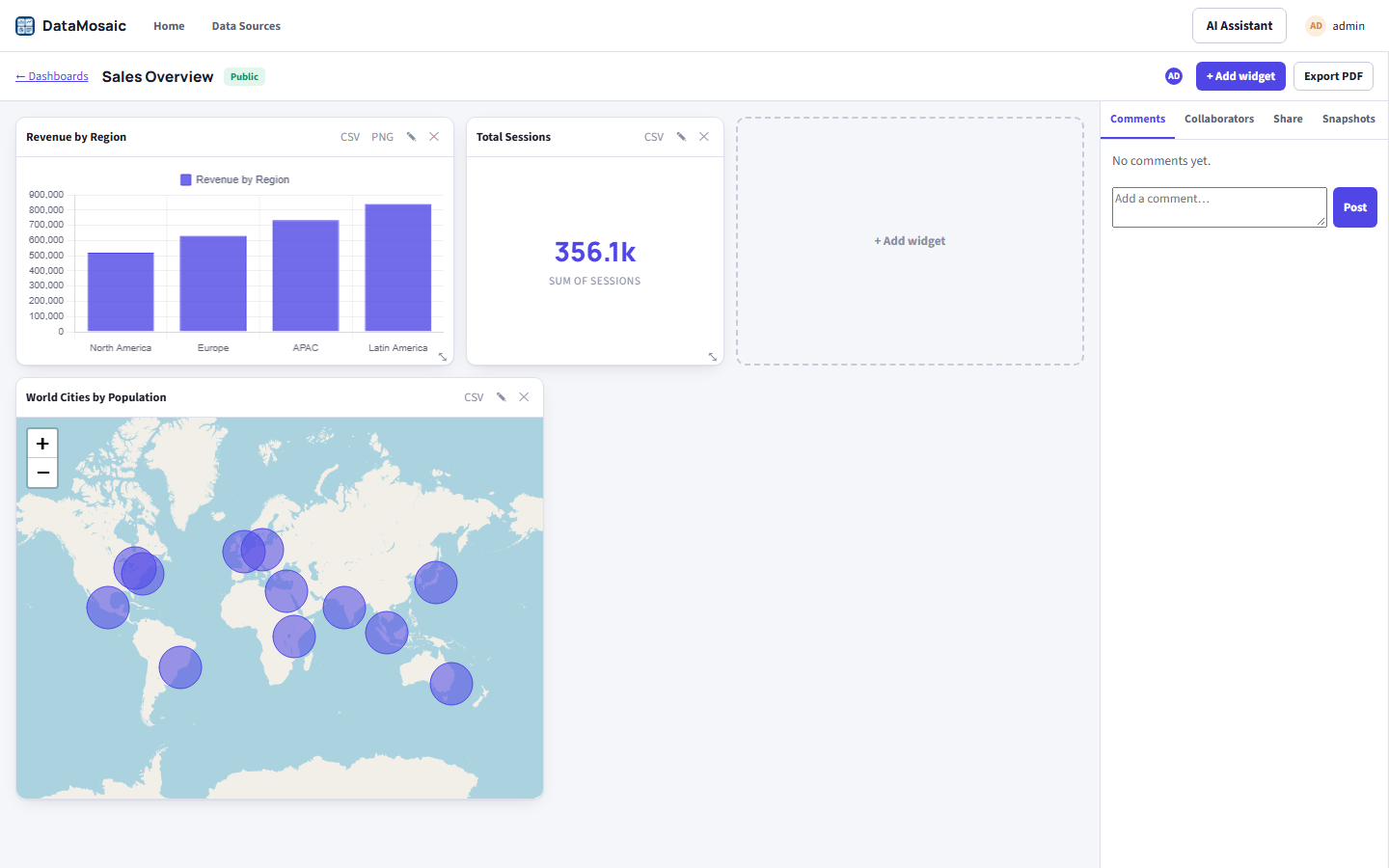
Sales Overview dashboard with a Revenue by Region bar chart and a World Cities by Population map
The Sales Overview sample dashboard: a bar chart and a geospatial widget sharing one canvas.

The DBOps Dashboard

Click + New DBOps Dashboard on Home and pick a Shared Data Connection to get a one-click "fleet health" view: DataMosaic provisions a dashboard plus two DBOps Telemetry sources (connection utilization and unused indexes) plus a line widget and a table widget, all pre-wired, in one call.
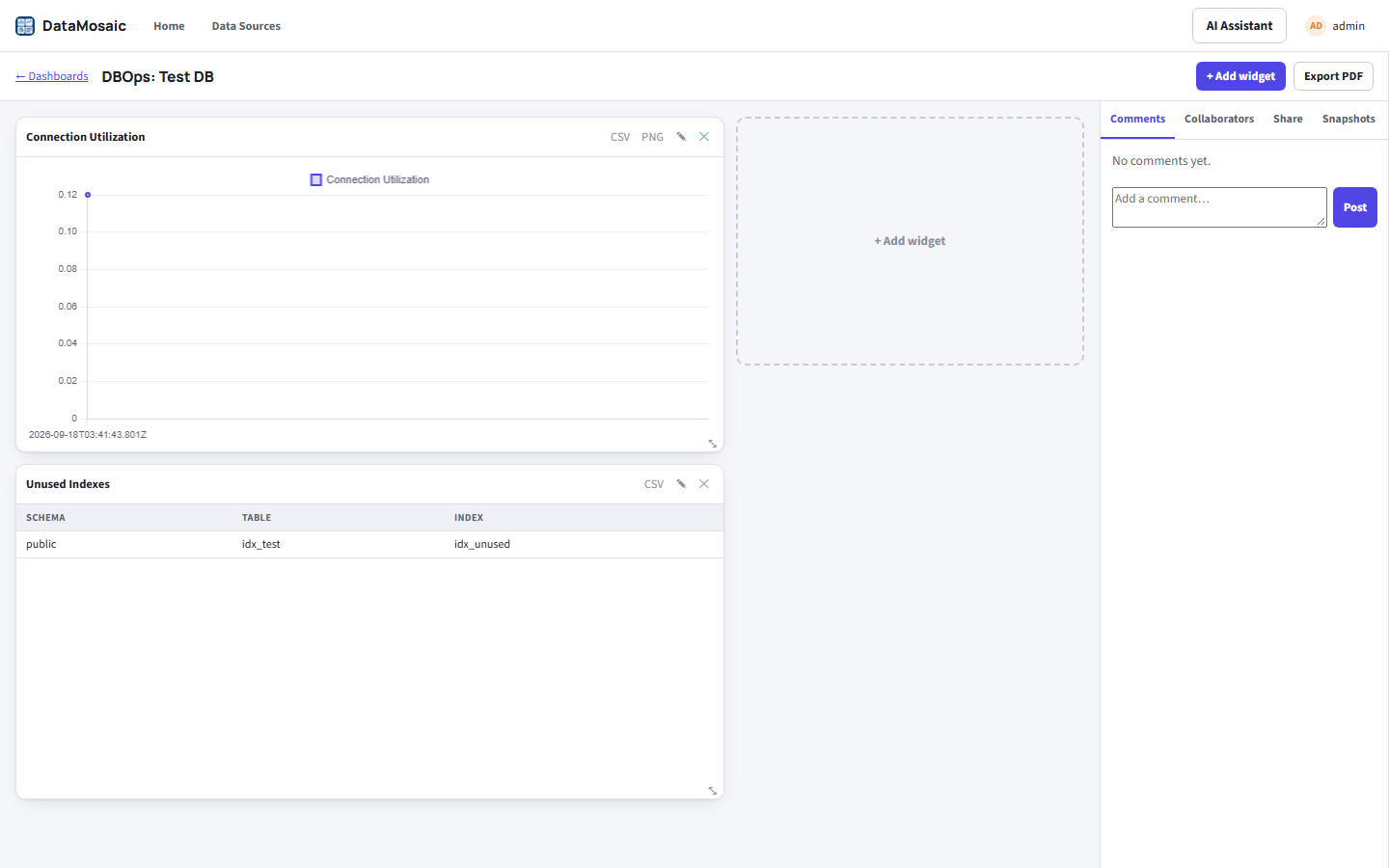
DBOps: Test DB dashboard with a Connection Utilization line chart and an Unused Indexes table
Real data flowing end-to-end: Flow's Telemetry Poller and Index Evaluator nodes push these numbers to Core; this dashboard is just reading them back.
Scope This is one dashboard per Shared Data Connection, not a single fleet-wide view across every connection at once — an admin with several connections gets several "DBOps: <name>" dashboards. See the AI DBA Agent on the overview page for how the telemetry gets here in the first place.

Collaboration & sharing

Every open dashboard is a Socket.IO room: comments, collaborator presence, and every widget/layout edit sync live to everyone else looking at it, with no manual refresh. The right-hand panel switches between Comments, Collaborators, Share, Snapshots, and Git.

Collaborators

The Collaborators tab has a name picker listing people who have signed in to DataMosaic (minus the owner, you, and anyone already added). Pick a person and a role — viewer or editor — and change or remove it later from a per-collaborator dropdown. The server validates every role, rejects the owner or unknown users, and audit-logs sharing, role changes and unsharing. Dashboards shared with you carry a Shared with you badge on Home.

Public links, embeds & edit links

The Share tab (owner or admin) turns on a public link and manages it:

  • View link (/share/:token) — read-only, no login required. Set an expiry (Never, 1 day, 7 days, 30 days, or a date you pick; it applies to every public link of the dashboard) or Regenerate link, which immediately kills the old URL and every embed using it.
  • Embeds — the tab generates an <iframe> snippet for the whole dashboard (/embed/:token) or for a single live widget (/embed/:token/w/:widgetId; a </> button on each widget jumps to its snippet). Embeds are chrome-free, read-only, and re-fetch on a timer; query options are refresh=<seconds> (default 60, 0 turns it off), title=0, and theme=light|dark. Sites that may embed is either any site or an allow-list of origins, enforced with a frame-ancestors header on the embed pages only.
  • Edit link (/g/:token) — optional. Anyone holding it can change that one dashboard's widgets without signing in. It is a restricted guest identity re-checked on every request: a strict allow-list of routes, no new data sources, no SQL query graphs, and no access to sharing, exports, comments, Git, other dashboards, or the AI Assistant. Disabling, regenerating, or letting it expire takes effect immediately.

All share changes are written to the audit log.

Snapshots & Git

  • Snapshots archives a timestamped copy of the current widget layout for later reference.
  • Publish to Git (editors and owners) commits the dashboard definition to your repository, or opens a pull request, through Core's Version Control connection; the tab also lists the publish history. DataMosaic never holds a Git credential of its own.

AI Assistant

Unlike Detanami's or Smith's chat panels, DataMosaic has no single query or command target — so its AI Assistant (top right, on every page) is a general Q&A assistant aware of your data sources and dashboards by name and type, with no insert/apply action. It's the one AI DBA Agent surface that's pure conversation.
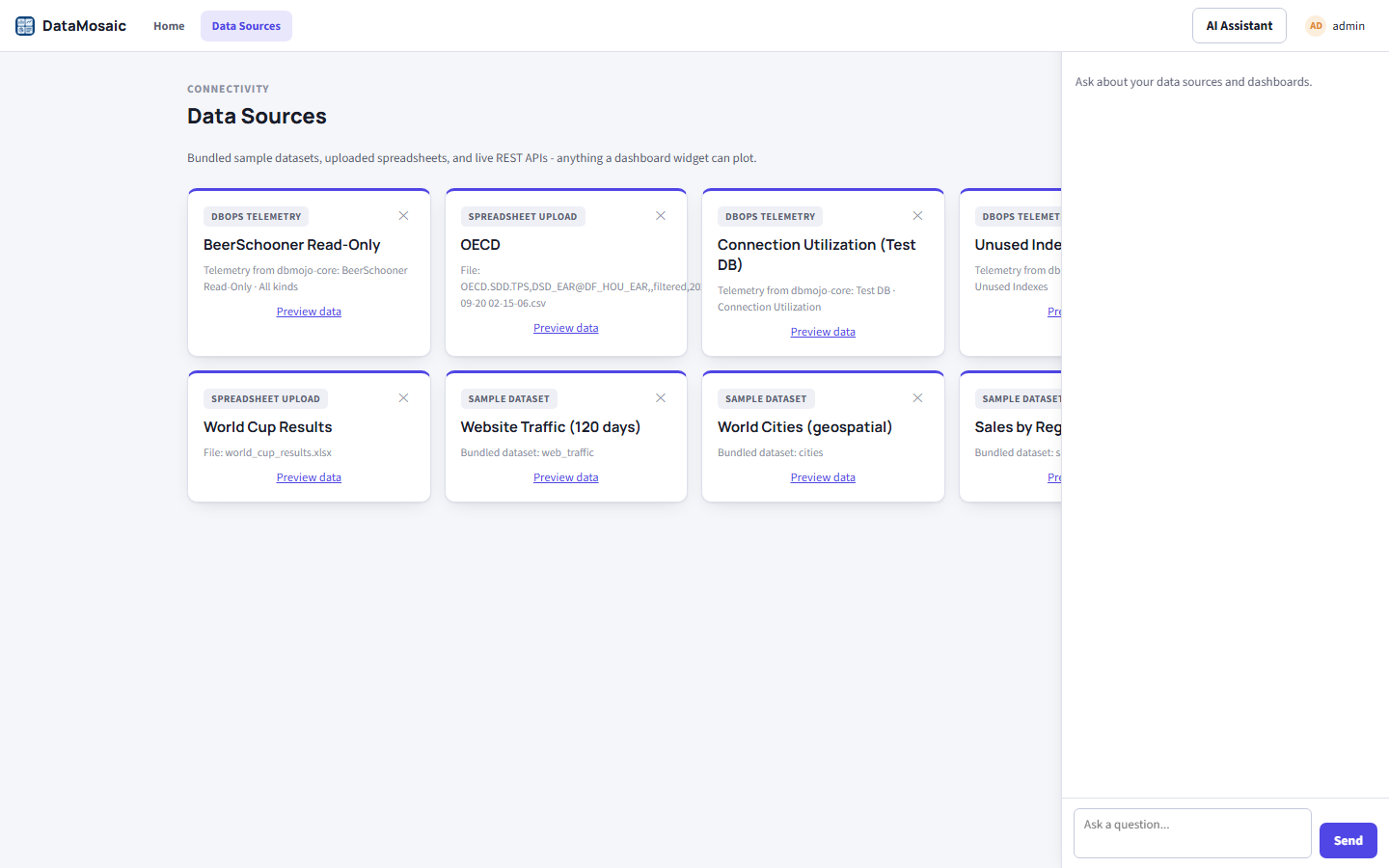
AI Assistant panel open with an empty conversation, prompting to ask about data sources and dashboards
The assistant persists across page navigation — it's part of the app's shell, not scoped to one dashboard.

Walkthrough: from telemetry to a dashboard

  1. Make sure Flow has a Telemetry Poller node pointed at a Shared Data Connection and deployed (see Flow's AI DBA nodes).
  2. In DataMosaic, go to Home and click + New DBOps Dashboard.
  3. Pick the same connection — a dashboard with a utilization chart and an unused-indexes table is created automatically.
  4. Add a widget of your own (e.g. a KPI tile) against a different source to round it out.
  5. Open Share to hand a read-only link to someone without suite access, or invite a Collaborators for two-way editing.

Export, import & reporting

Per-widget CSV export works for any widget; chart widgets also export PNG directly. For the whole dashboard, use the Export menu in the toolbar:
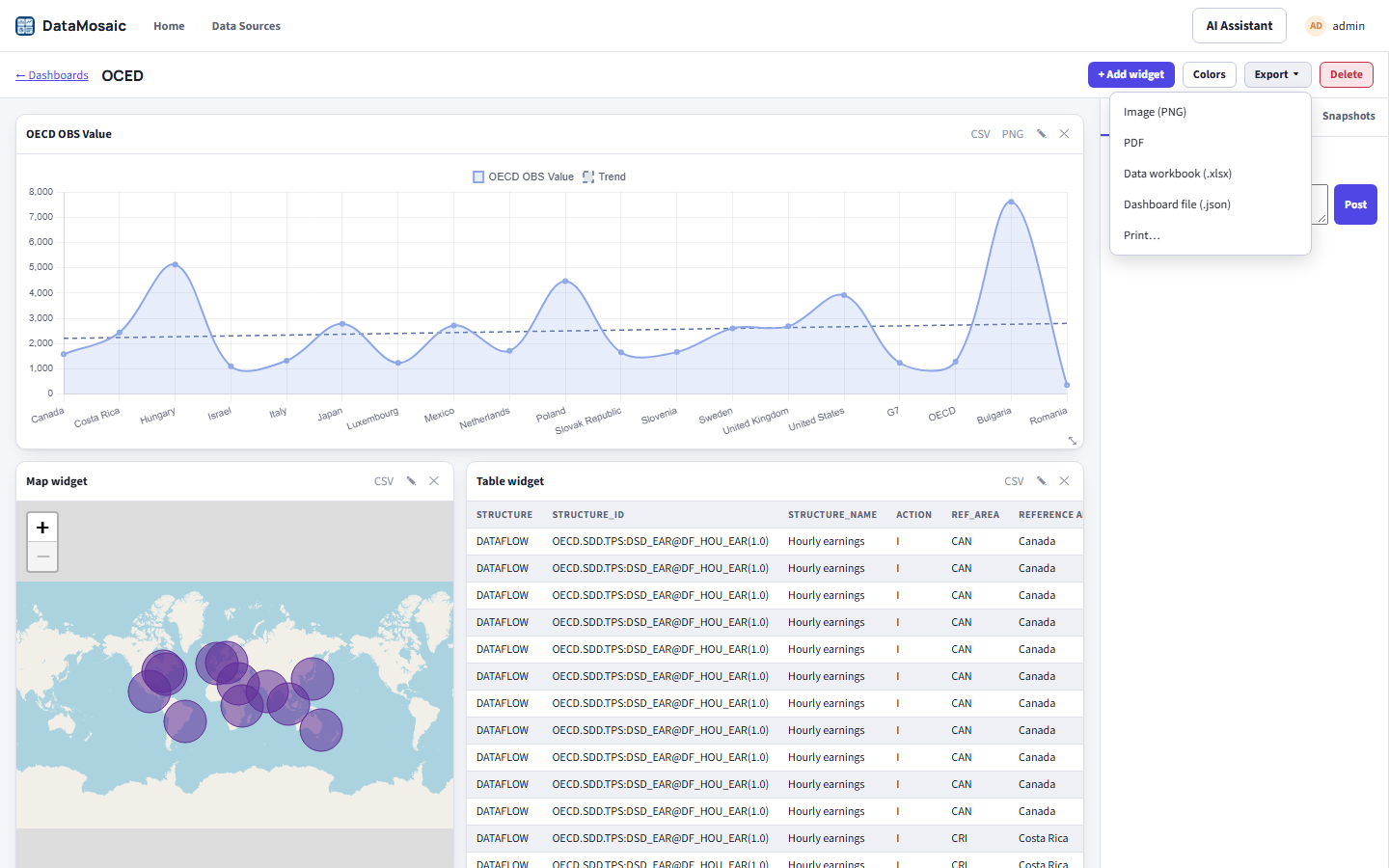
Export menu open on a dashboard with Image (PNG), PDF, Data workbook (.xlsx), Dashboard file (.json) and Print options
The dashboard Export menu.
OptionWhat you get
Image (PNG)The whole dashboard as one image.
PDFThe whole dashboard as a PDF. Image and PDF are both rendered in your browser (the libraries load on demand).
Data workbook (.xlsx)One sheet per widget, honouring any cross-filter currently applied.
Dashboard file (.json)A portable definition — layout, widgets, theme — to re-import elsewhere or keep as a backup.
Print…The browser's print dialog against a dedicated print stylesheet.

Import on the Home page takes a dashboard file and creates a new dashboard from it, re-linking data sources by name and type. Dashboards can also be exported straight from their card on Home. Exports and imports are audit-logged.

Known gap There is no scheduled or emailed export delivery today — export is always a manual, in-the-moment action. Use Snapshots if you need a point-in-time record to come back to later.