Data modeling
 Blueprint
A web-based data modeler. Reverse-engineer a live schema from a Shared Data Connection onto an ER canvas, edit it, generate dialect-specific DDL, compare the model with the real database, and file the difference — with a rollback script — as an approval request in Core. Blueprint reads your schema but never changes it.
Blueprint is the suite's fifth tool. Like the others it authenticates through DBMojo Core and installs from Core's Tools page; it appears on the Launcher once it's installed and enabled for you.
Today Blueprint covers import, the ER canvas and editing, DDL generation, a model-versus-database diff, and filing that diff as a Core deployment request. Those three dialects are the ones it can introspect and generate DDL for.
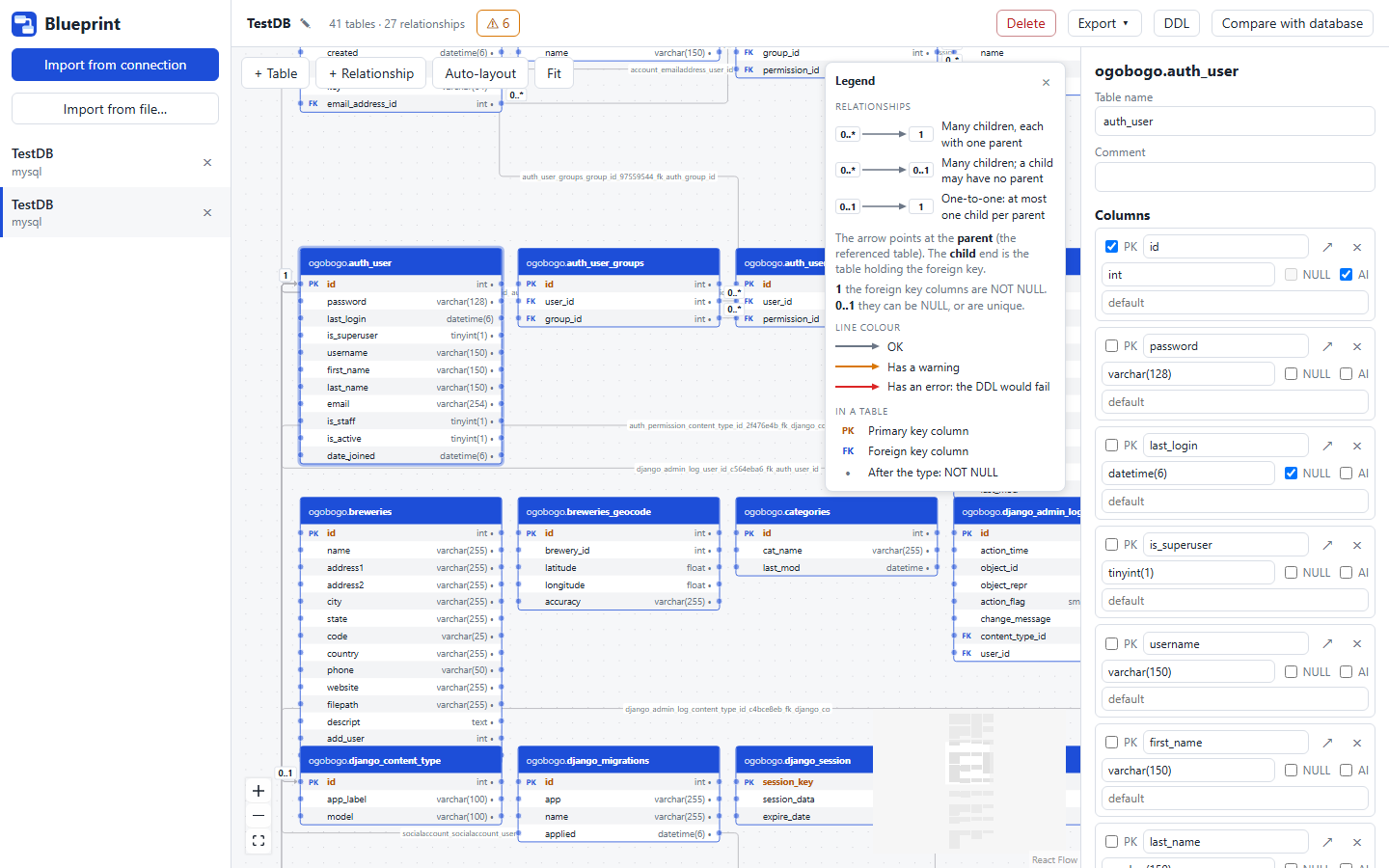
Click Import from connection, choose one of the Shared Data Connections you have access to, tick the schemas you want, optionally give the model a name (it defaults to the connection's name), and click Import. Blueprint asks Core for the connection's credentials at that moment, reads the catalog, and builds a model of the tables, columns, primary keys, foreign keys, and indexes it finds.
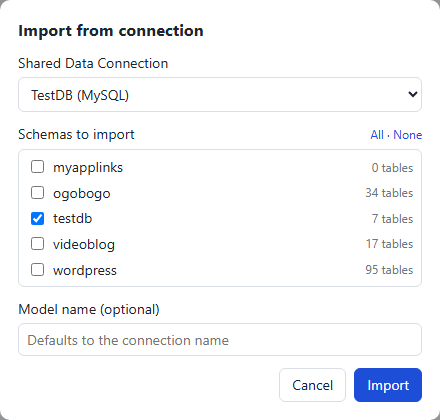
The imported model is drawn as an entity-relationship diagram. Each table is a card listing its columns with their types; PK and FK badges mark key columns, and a bullet marks a column that is not nullable. Relationships are lines between the card columns they connect, labelled with the constraint's name. The toolbar above the canvas has:
Reading the lines. Every relationship is drawn as an arrow from the child table (the one holding the foreign key) to the parent table it references, with the row count at each end: 0..* on the child end means a parent can have many children, 0..1 means at most one (the foreign key columns are the child's primary or a unique key, so the link is one-to-one); on the parent end, 1 means the foreign key columns are NOT NULL, so every child has a parent, and 0..1 means a child may have none. Blueprint derives these from your model — change a column's nullability or add a unique key and the line follows. A grey line is fine, an amber one has a warning, and a red one has an error.
A Legend panel on the canvas decodes all of this (and the PK/FK badges and the not-null bullet). It is collapsible and remembers whether you left it open.
A small badge on a table's header (⚠ for warnings, ✕ for errors, with a count) marks tables that have a problem — see Model checks.
The model's name in the title bar is editable in place: click the pencil or double-click the name, press Enter to save or Escape to cancel. Renames are validated and audited. The Delete button (and the × in the sidebar) asks for confirmation first: the dialog counts the tables and relationships that will go, says that deleting never changes a database or touches requests already filed in Core, and warns if requests for this model are still open in Core — they keep their SQL and can still be approved.
Table positions are saved as part of the model. Edits autosave a moment after you make them; the title bar shows Saving… then Saved beside the table and relationship counts.
Click a table to open its inspector on the right. Click a relationship line to inspect that instead.
To add a foreign key, drag from a column's right-hand dot to a column on another table. Select the resulting line to rename the constraint, edit the column pairs (child column → parent column; add more pairs for a composite key), choose its ON DELETE and ON UPDATE actions (NO ACTION, RESTRICT, CASCADE, SET NULL, or SET DEFAULT), or delete it. Adding a relationship that duplicates an existing one is refused.
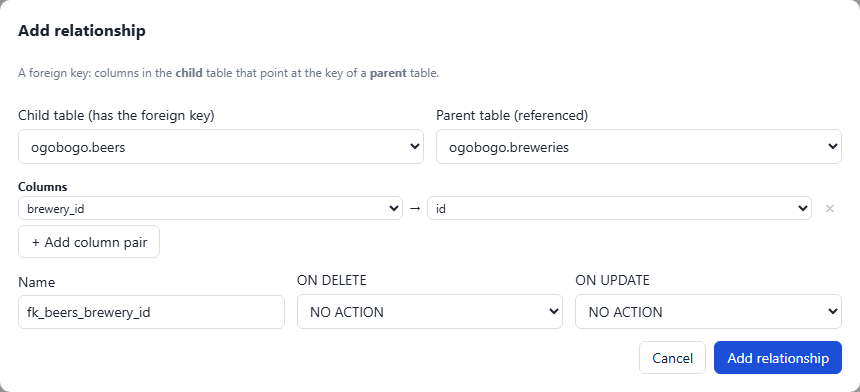
If you would rather not drag, click + Relationship in the canvas toolbar, + Add relationship… in a table's inspector, or the arrow beside a column. Pick the child table (it holds the foreign key) and the parent table (it is referenced). Blueprint proposes the column pairing from the parent's key — it looks for a child column named after the parent and its key, such as brewery_id for breweries.id — and a constraint name, and you can edit the pairs, the name, and the ON DELETE and ON UPDATE actions.
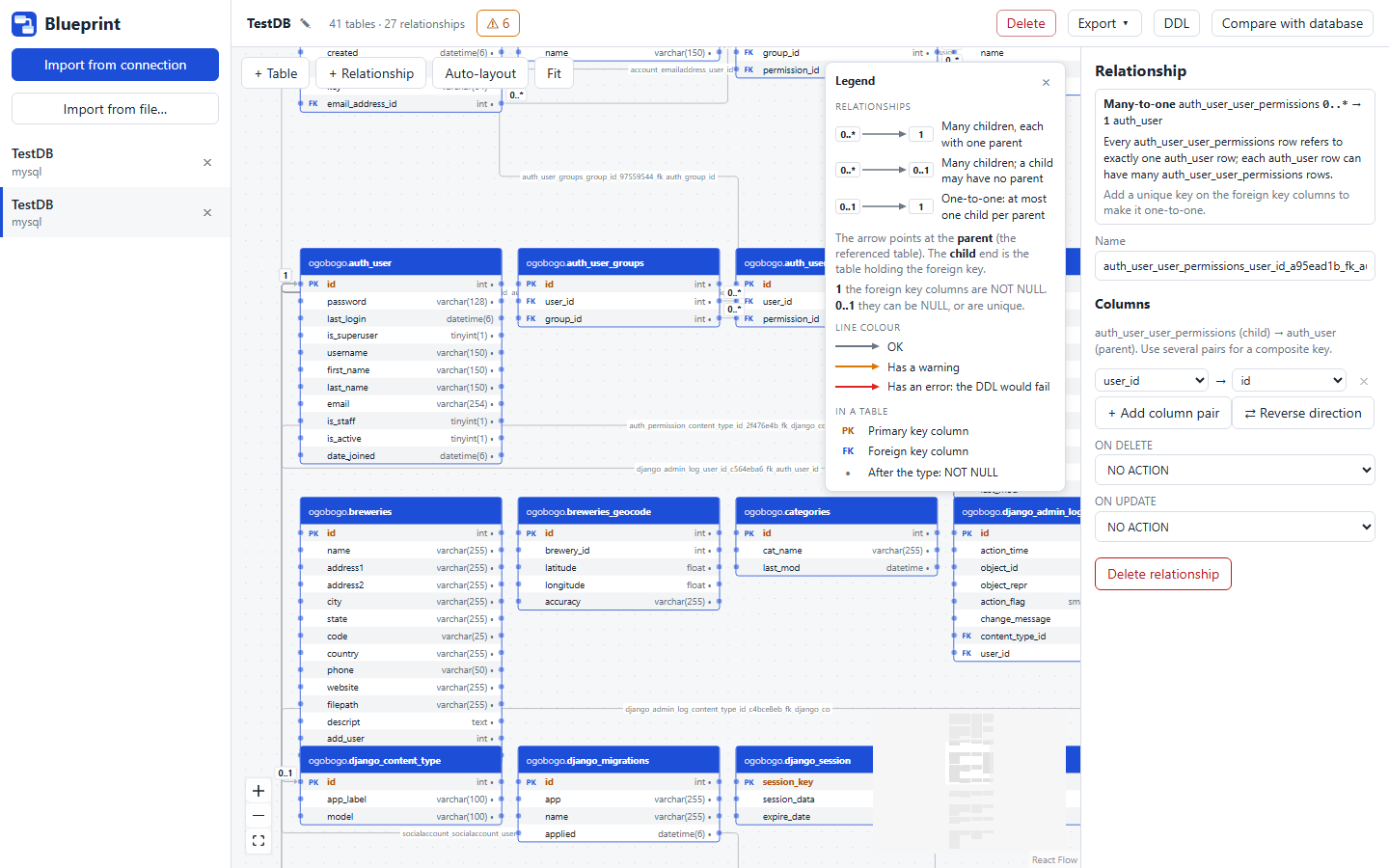
Selecting a relationship explains its cardinality in plain words at the top of the inspector (“Every order row refers to exactly one customer row…”) and suggests what to change to make it one-to-one or mandatory. ⇄ Reverse direction swaps child and parent — the foreign key moves to the other table — keeping the column pairs, any custom name, and any dismissed warnings.
Blueprint checks the model as you edit it. The badge in the title bar shows the count — ✕ errors, ⚠ warnings, or ✓ No issues — and clicking it opens Model checks, listing every problem with the table or relationship it concerns. Click a problem to select that table or relationship on the canvas. Tables and relationships that have problems also show them in the inspector and as a badge on the canvas.
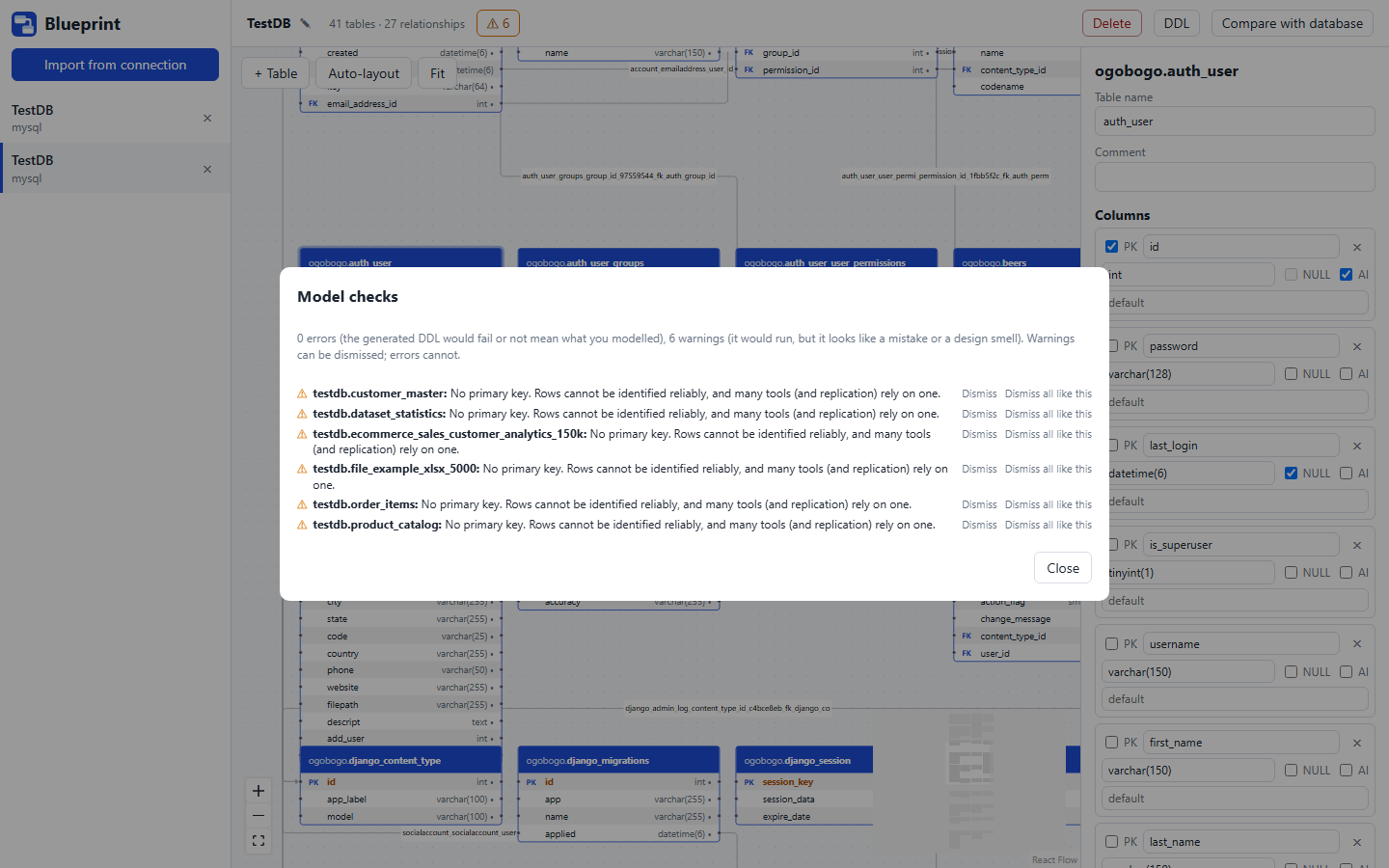
| Severity | Meaning | Examples |
|---|---|---|
| Error | The generated DDL would fail on this database, or wouldn't mean what you modelled. Errors can't be dismissed. | A key or index that names a missing column; a duplicate column, index, or constraint name; a name longer than the dialect allows; a foreign key whose column types differ (PostgreSQL treats this as a warning); a foreign key to a parent column that isn't a primary or unique key, or whose column order doesn't match an index on the parent (MySQL); a foreign key that points a column at itself; SET NULL on a non-nullable column; SET DEFAULT on MySQL; more than one auto-increment column in MySQL or SQL Server; SQL Server cascade cycles and multiple cascade paths. |
| Warning | It would run, but it looks like a mistake or a design smell. | A table with no primary key; duplicate, redundant, or primary-key-repeating indexes; redundant unique keys; a duplicate relationship; a foreign key with no supporting index (PostgreSQL and SQL Server); a foreign key to a non-unique parent column that MySQL allows; a relationship to a table that isn't in the model (for example after a partial import); a composite foreign key with a nullable column; a foreign key to a nullable unique key; two foreign keys sharing a column; SET DEFAULT on a column with no default; RESTRICT on SQL Server, which it creates as NO ACTION. |
Dismissing warnings. A warning has Dismiss (hide it for that table or relationship) and Dismiss all like this (hide that kind of warning everywhere in the model). Dismissed warnings are kept at the bottom of the dialog with a Restore button, and they're saved with the model.
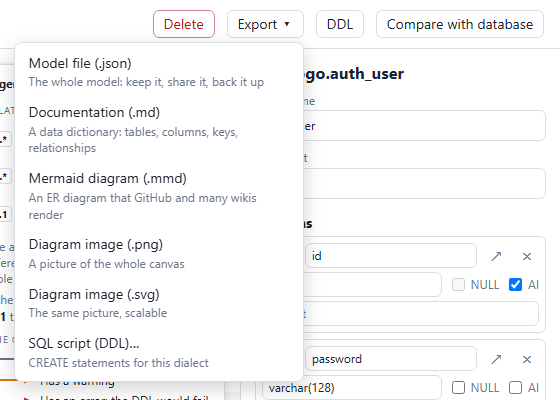
The Export menu in the title bar writes the open model to a file in your browser — nothing is sent anywhere and no database is touched.
| Entry | What you get |
|---|---|
| Model file (.json) | The whole model — keep it, share it, back it up, or import it again later. |
| Documentation (.md) | A data dictionary in Markdown: every table with its columns, keys, and relationships. |
| Mermaid diagram (.mmd) | An ER diagram in Mermaid syntax, which GitHub and many wikis render directly. |
| Diagram image (.png / .svg) | A picture of the whole canvas, drawn from the model — PNG for pasting into a document, SVG when it needs to scale. |
| SQL script (DDL)… | Opens the DDL dialog (the same as the DDL button). |
Import from file… in the sidebar takes a model file written by Export → Model file (.json). Choose it or drop it on the dialog (it must be a JSON file under 10 MB). Blueprint validates it in the browser first and shows what it found — the number of tables and relationships, the dialect, and what the model checks say — or lists why the file can't be imported. The server then checks it again and rebuilds the model from known fields only before storing anything, so a hand-edited or foreign file can't smuggle in anything else.
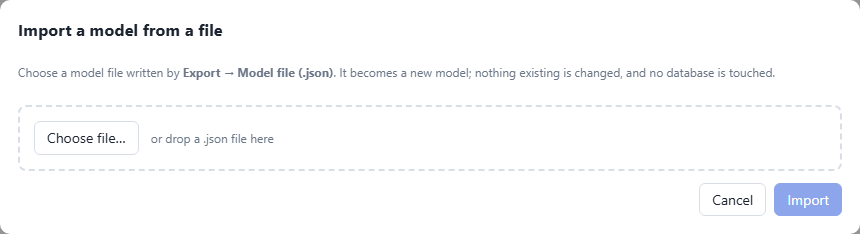
The file becomes a new model with its own name (distinct from your existing ones — you can change it before importing); nothing existing is changed. The import is audited.
The DDL button in the title bar (or Export → SQL script) shows the full CREATE script for the whole model, in the model's own dialect — MySQL, PostgreSQL, or SQL Server — including keys, indexes, and foreign keys. Copy puts it on the clipboard and Download .sql saves it as a file. It is generated, not executed.
Compare with database reads the live schema again (through the connection you choose) and works out the changes that would make the database match the model. It is a read-only operation.
The result is a list of changes — creating or dropping tables, adding, altering, or dropping columns (type, nullability, auto-increment, default), and adding or dropping primary keys, indexes, and foreign keys — with ⚠ marking anything destructive that can lose data. Two tabs show the SQL:
| Tab | What it is |
|---|---|
| Apply script | The ordered DDL that turns the live database into the model — constraints are dropped before the columns they depend on, and created after the tables they reference. |
| Rollback script | The reverse change, generated alongside it, to undo the apply script. |
If the database already matches, Blueprint says so and there is nothing to do. Both scripts can be copied or downloaded. Any model checks are shown above the change list.
Below the scripts, add an optional note for the approver (“Why is this change needed?”) and click Request deployment. The button is disabled while the model has errors. If the plan contains destructive changes you must first tick This includes destructive changes that can lose data.
You can only file a request if the connection is one Core lets you target for deployments — see who can target vs. who can execute.
Blueprint finds the other tools' addresses from Core, and only links to tools that are installed and enabled for you.
| From | Link | What happens |
|---|---|---|
| Detanami | Model in Blueprint (workbench toolbar, on a Shared Data Connection) | Opens Blueprint's import dialog with that connection already selected. You still confirm the import. |
| Smith | Open in Blueprint (the button on a Core connection's card) | The same prefilled import dialog, for that connection. |
| Blueprint | Generate a Data API in Smith (a table's inspector) | Opens Smith on that connection, schema, and table, and asks you to confirm before generating. It uses the table as it exists in the database, not your unsaved model edits. |
| Blueprint | Run in Detanami (on an approved request) | Opens Detanami's execute-by-id flow for the approved deployment (shown once the request is approved). |
 DBMojo Docs